Learn how to create a new parameter sheet in Quicklizard with these easy steps.
Go to app.quicklizard.com
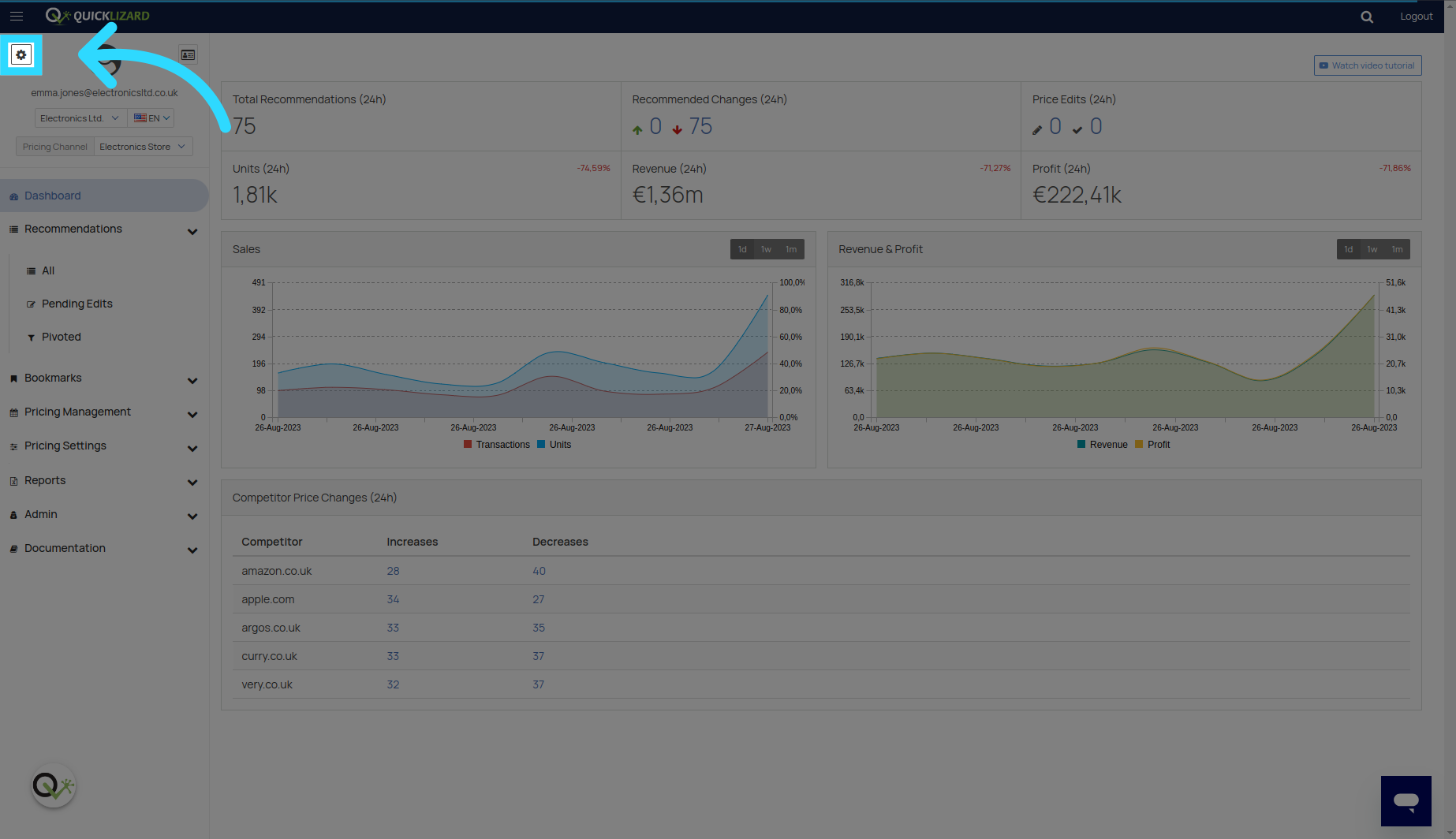
1. Click here
Click on the settings button on the top left corner to access the parameter sheet section.
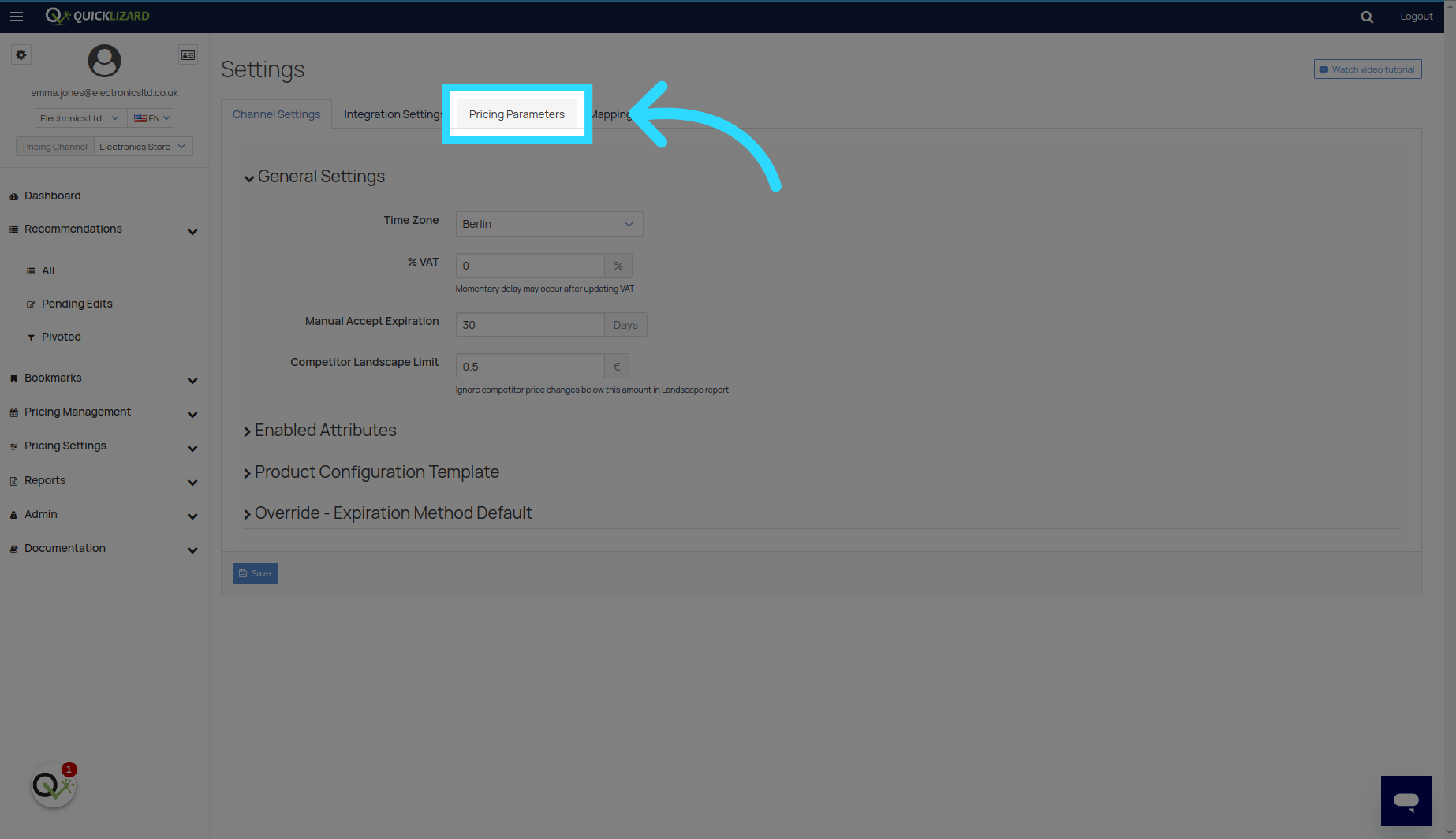
2. Click "Pricing Parameters"
Access the "Pricing Parameters" section, only user with account Manager and Global Settings Manager roles can access it.
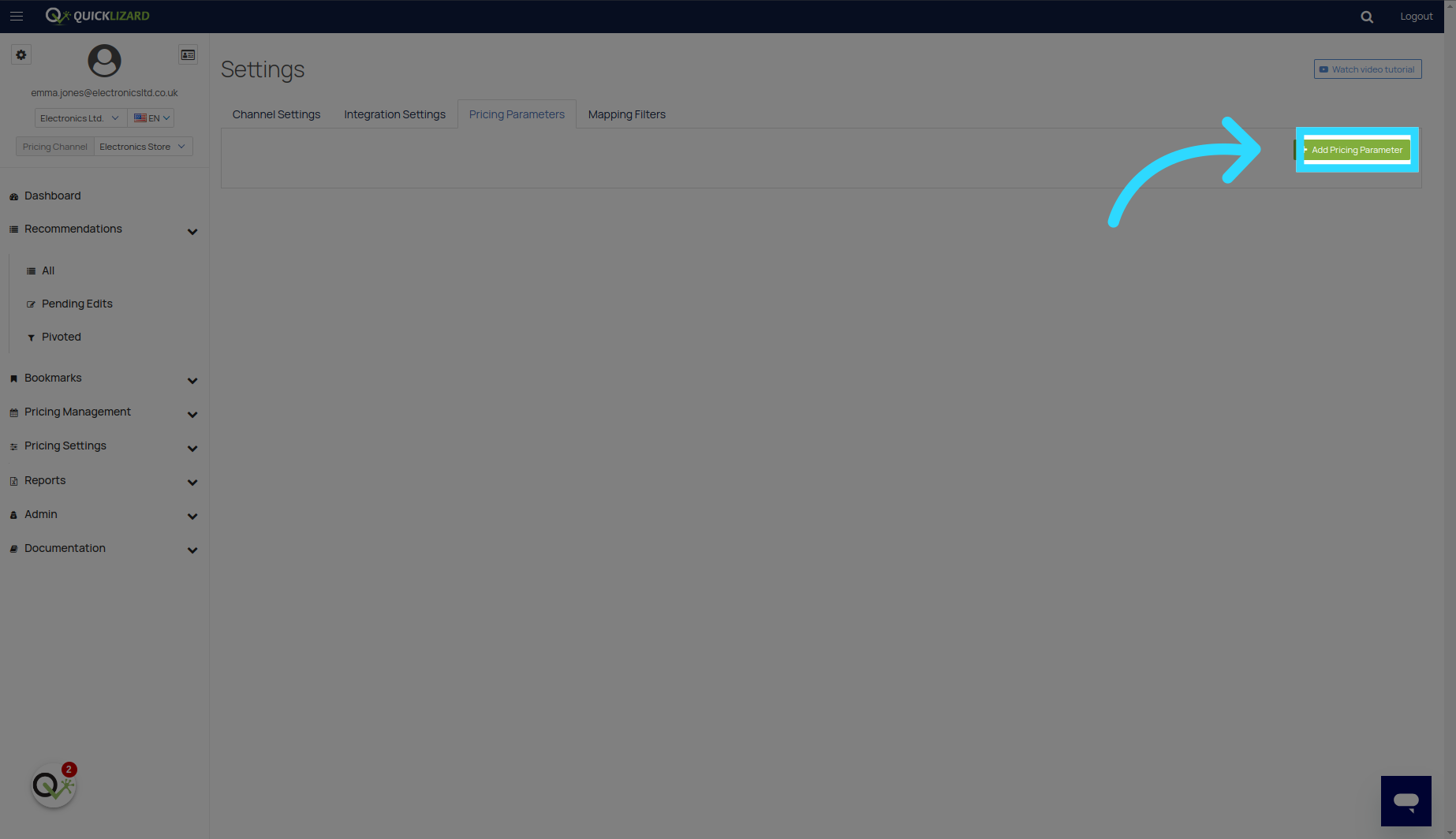
3. Click "Add Pricing Parameter"
Click the add pricing parameter button to add a new pricing parameter sheet
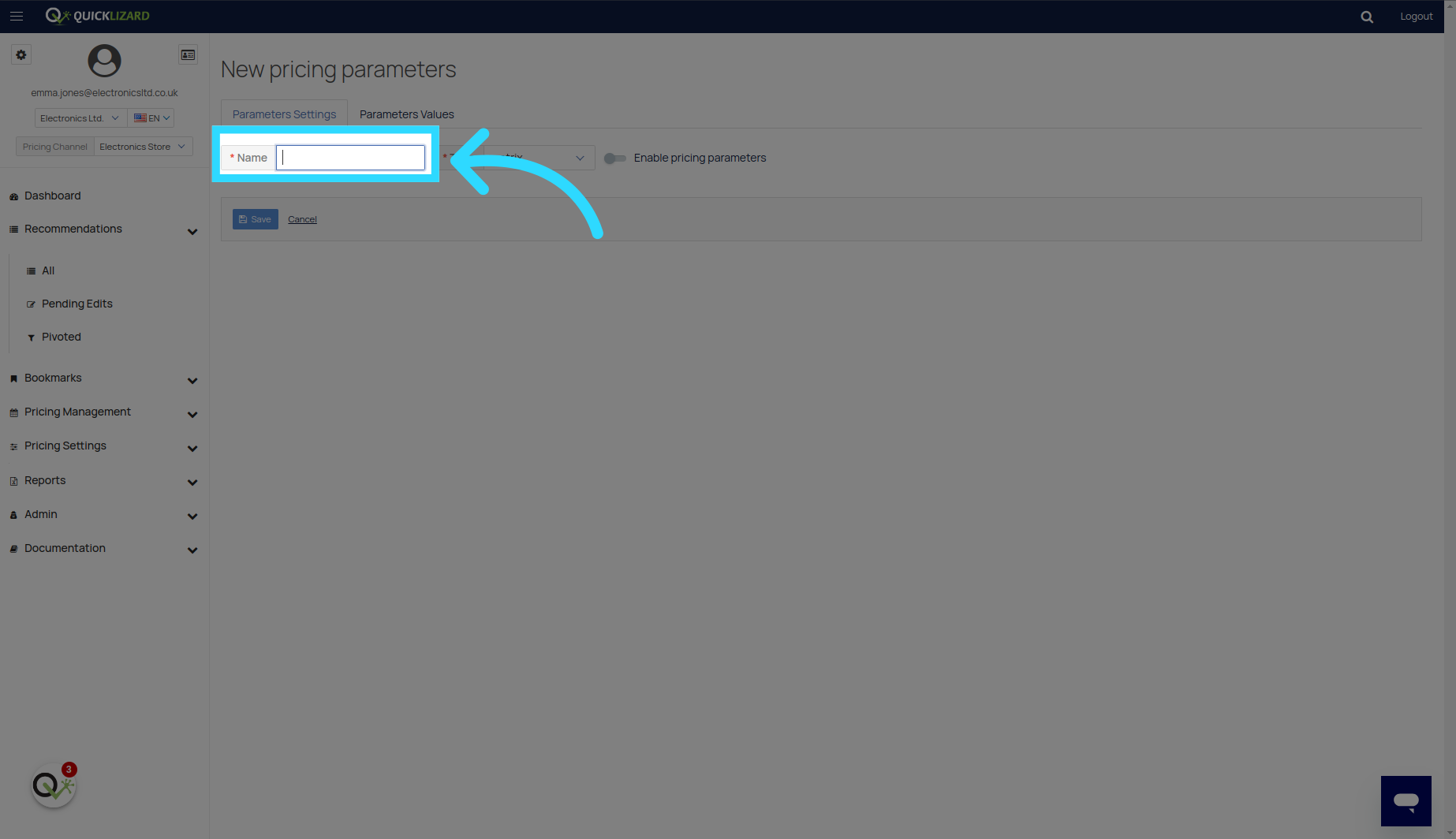
4. Click here
Enter the name of the parameter sheet. The name must be a unique value.
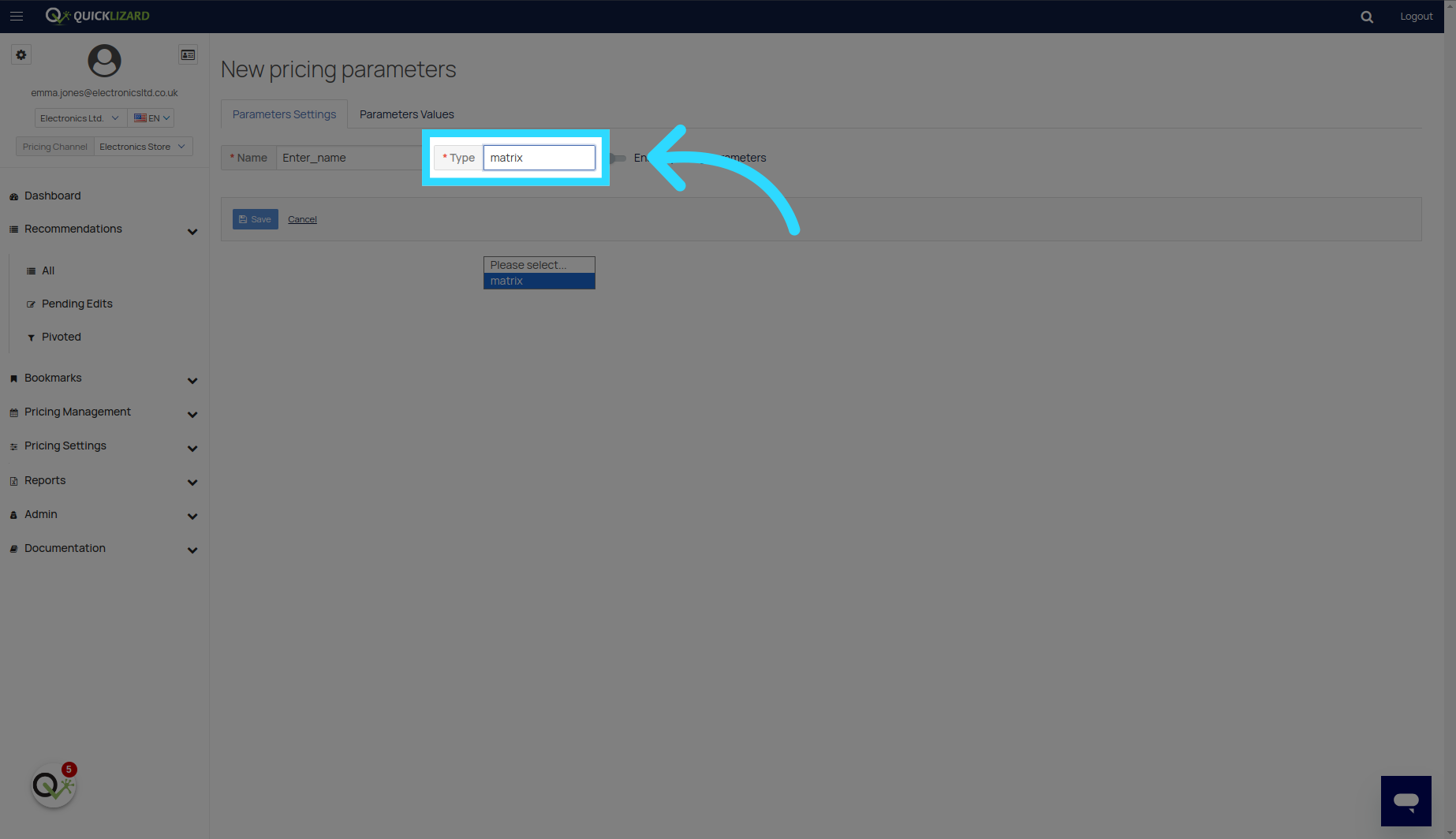
5. Click "Please select... matrix"
Currently, the only supported type is 'Matrix'
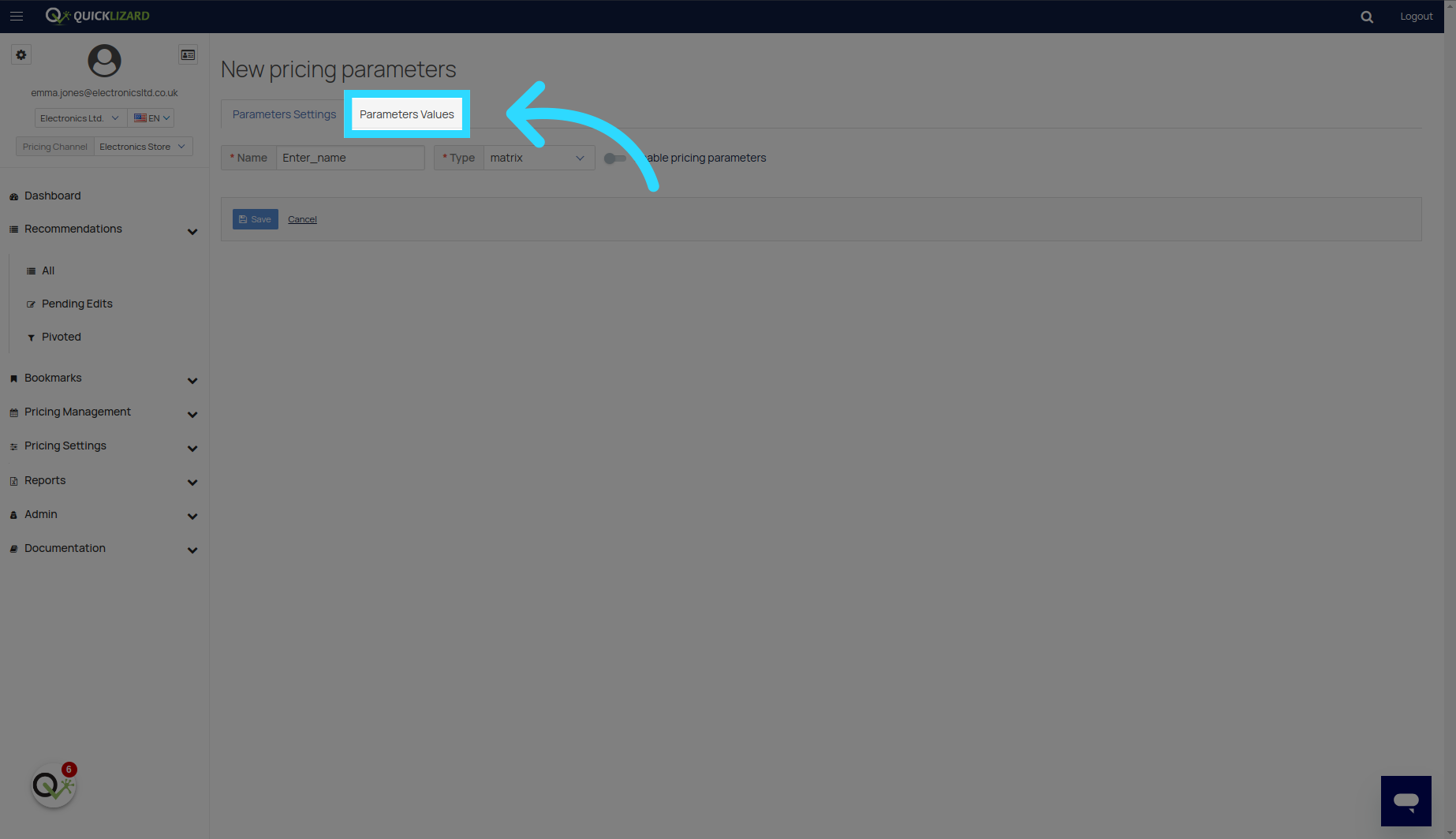
6. Click "Parameters Values"
Navigate to the "Parameters Values" tab to enter the parameters data.
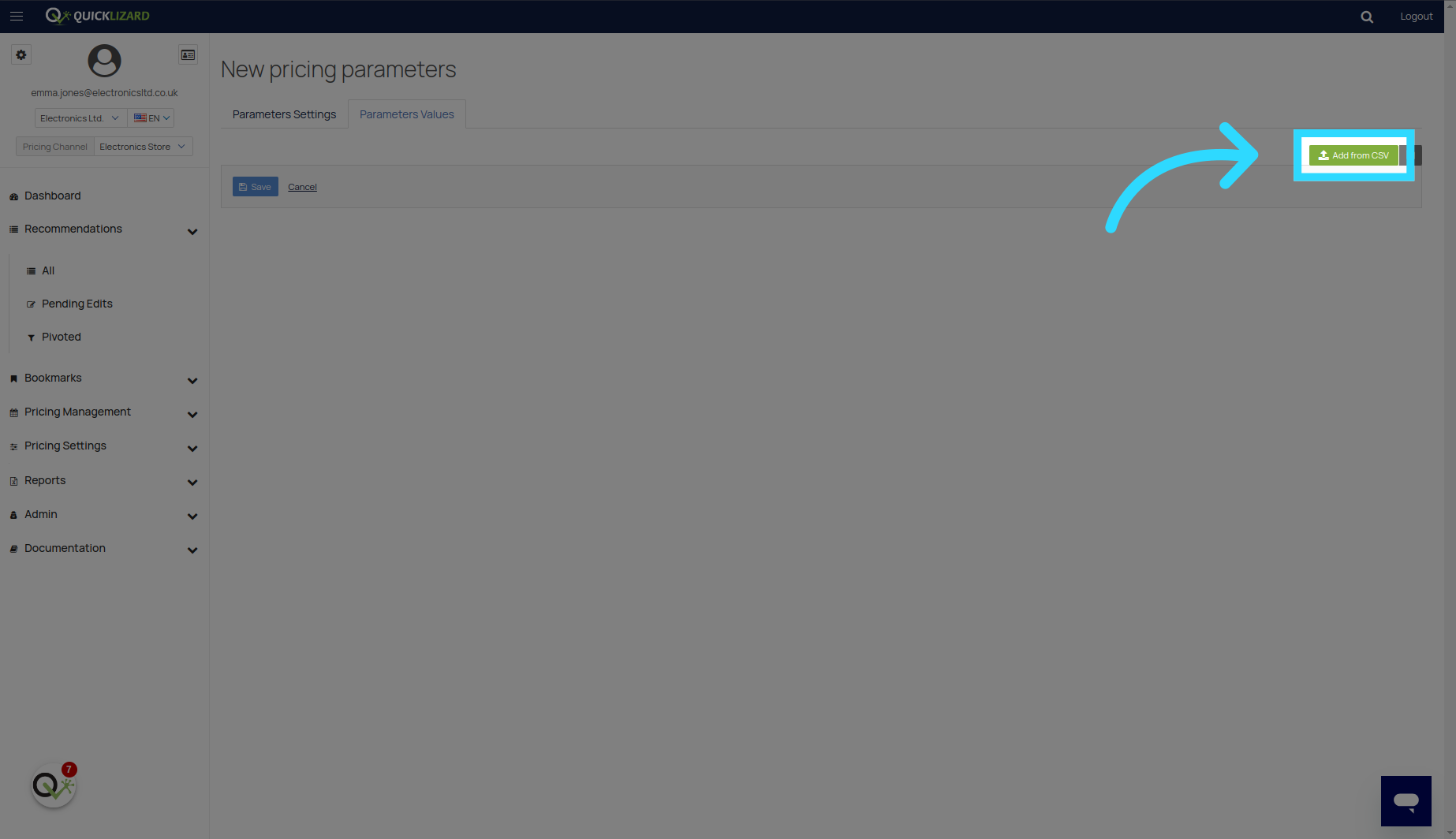
7. Click "Add from CSV"
Click the add from csv button to add the parameter sheet.
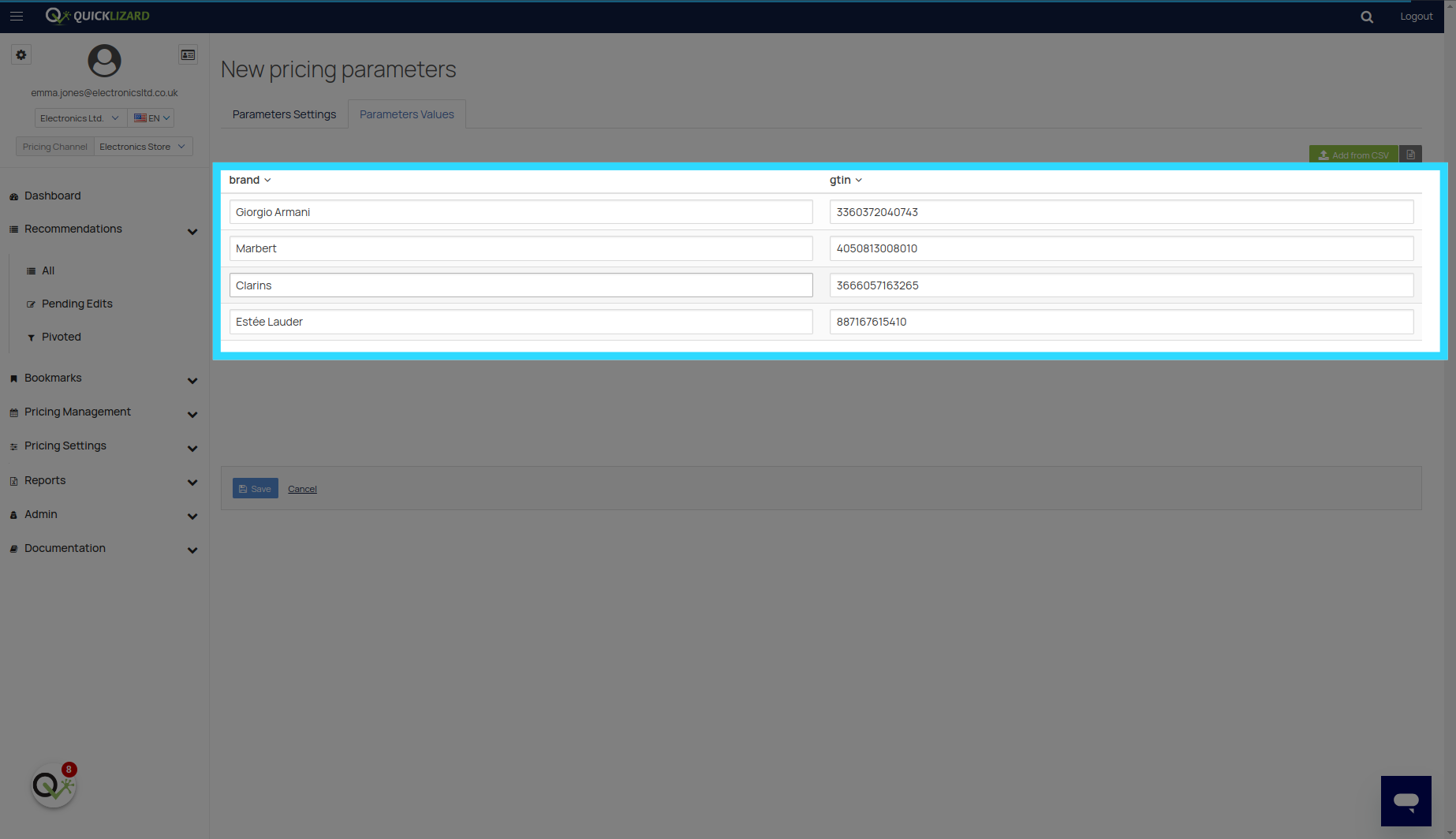
8. Click "Add from CSV"
The CSV should be in UTF-8 format and have a maximum of 2500 rows.

9. Fill here
The parameter sheet information will be loaded into the system
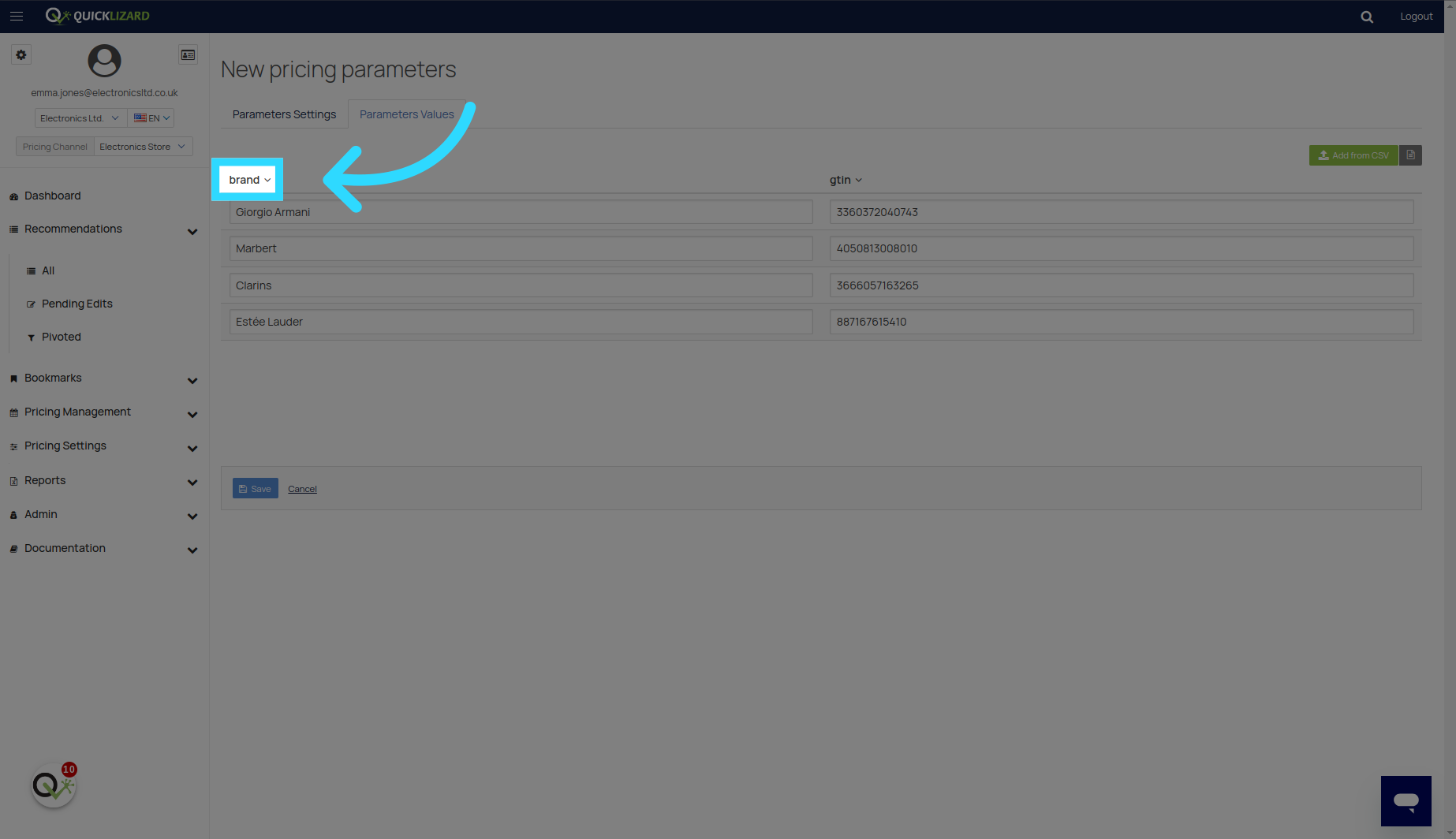
10. Click here
To configure each column setting, click on the arrow next to the column name.
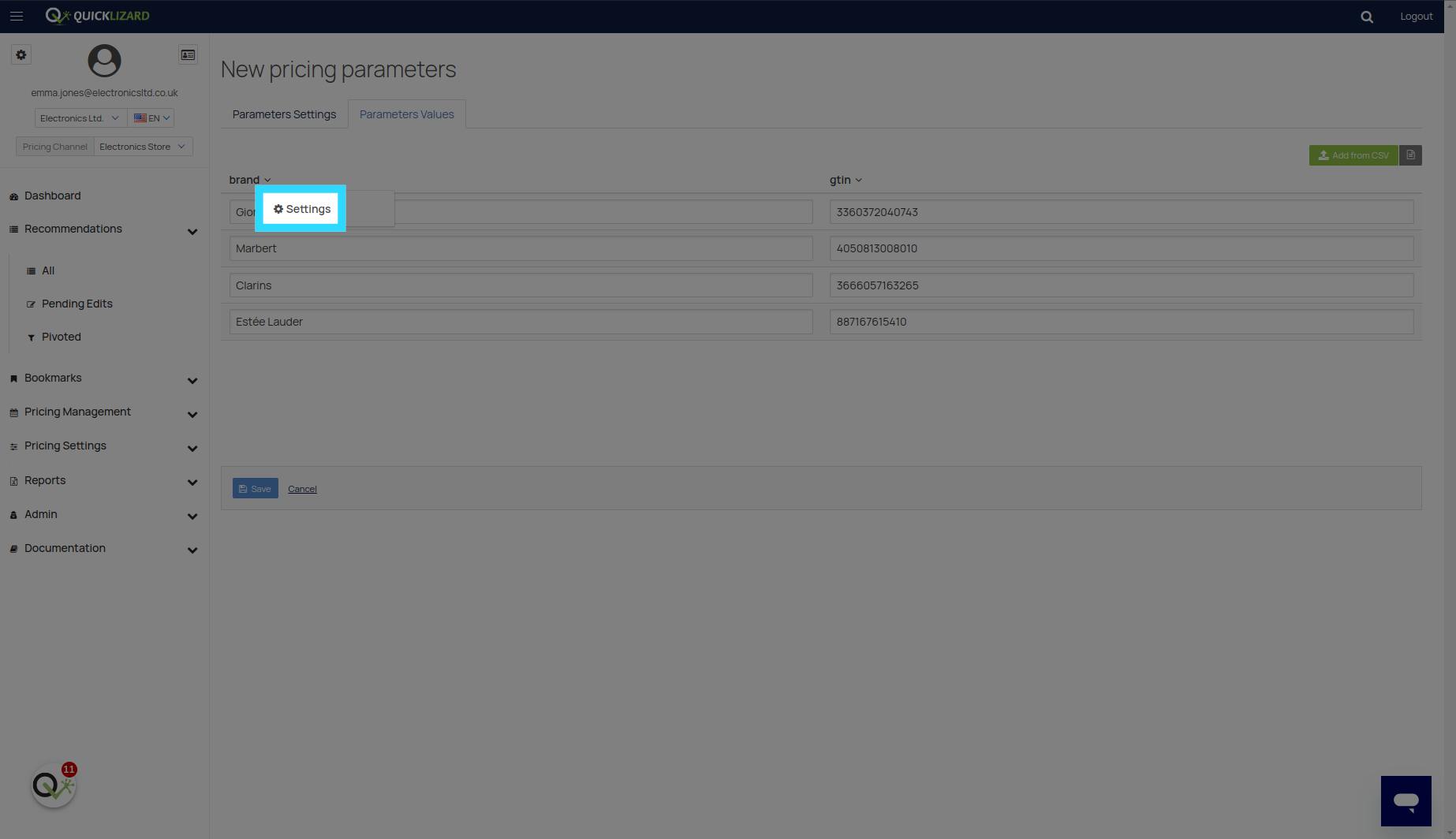
11. Click "Settings"
Select the "Settings" option from the dropdown menu.
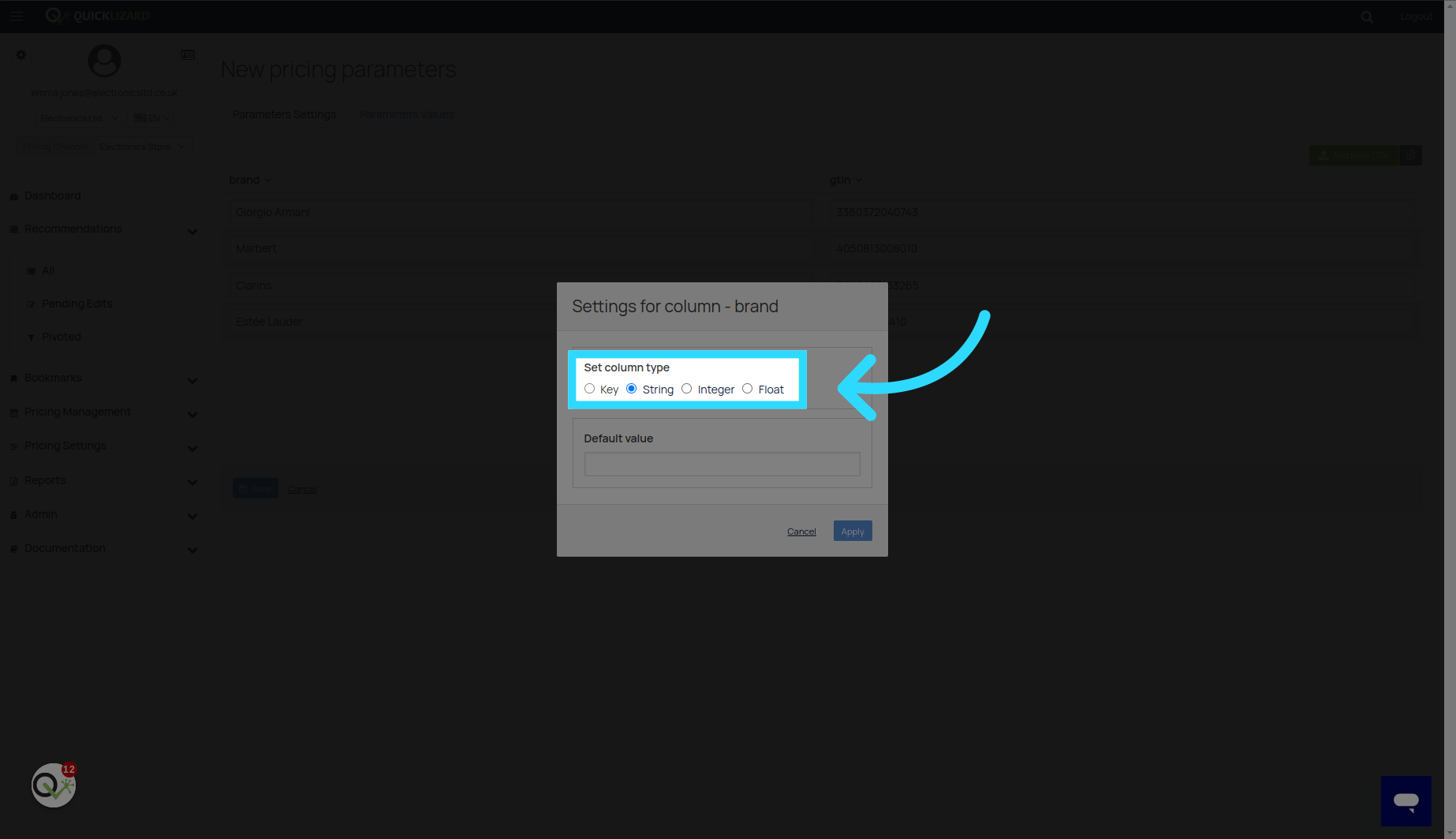
12. Click "Key"
Choose the column desired type.
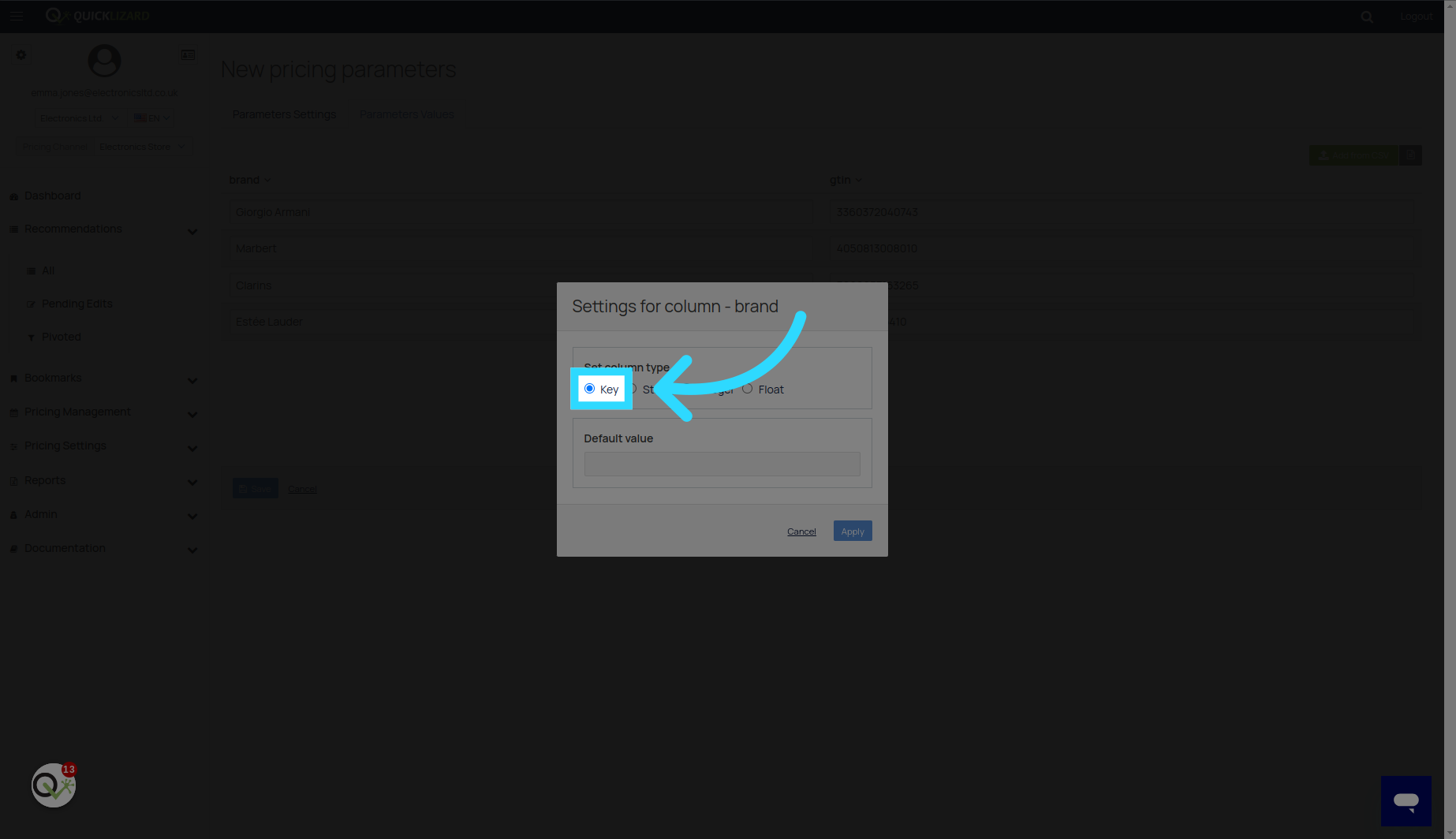
13. Fill "key"
Each csv must have at least one Key column and can have up to five. The key values must be unique.
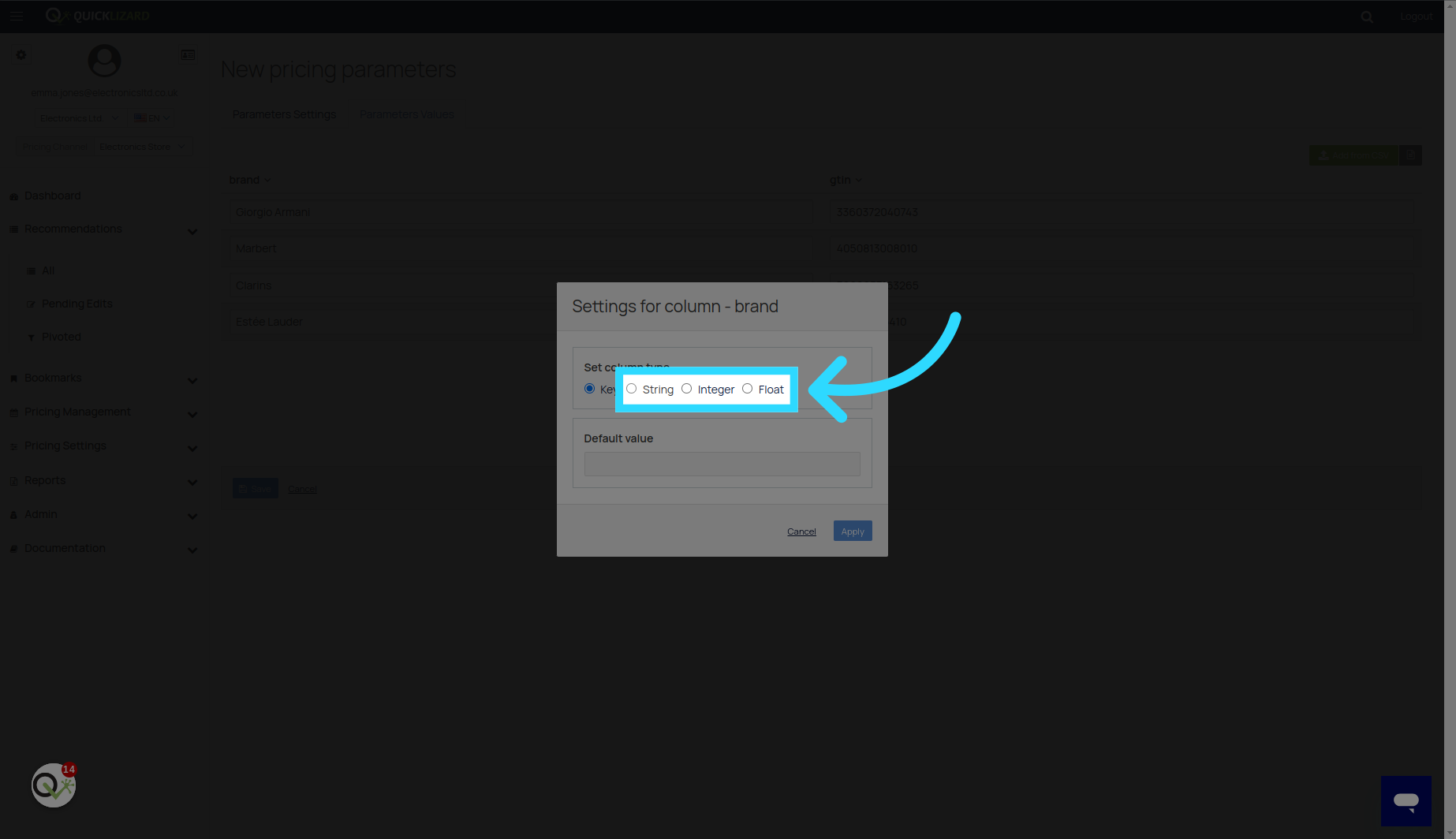
14. Click "String"
You can also choose string, interger or float as the column type.
15. Click "Integer"
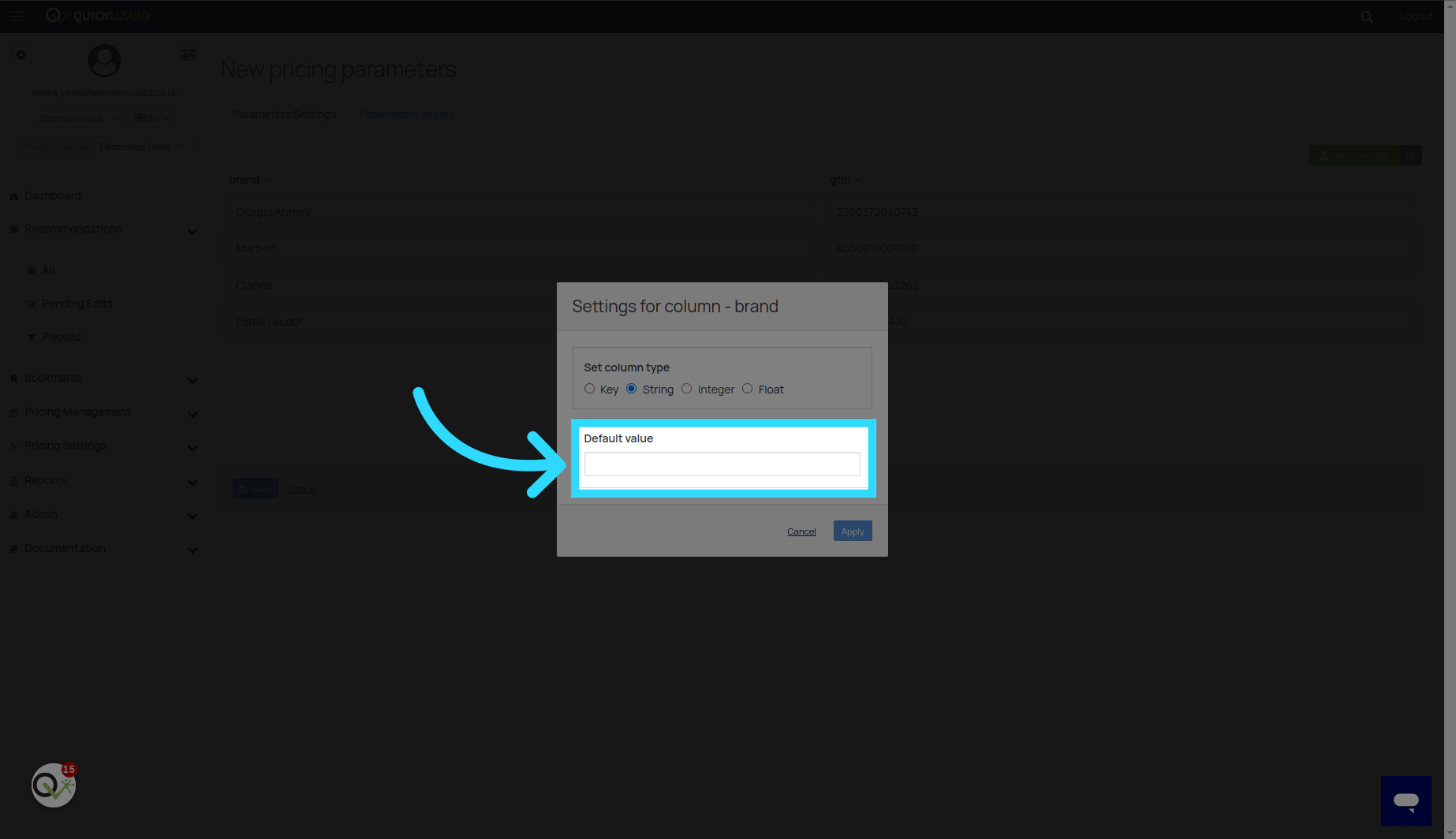
For non-key columns you can set a default value for blank cells.
16. Click "Apply"
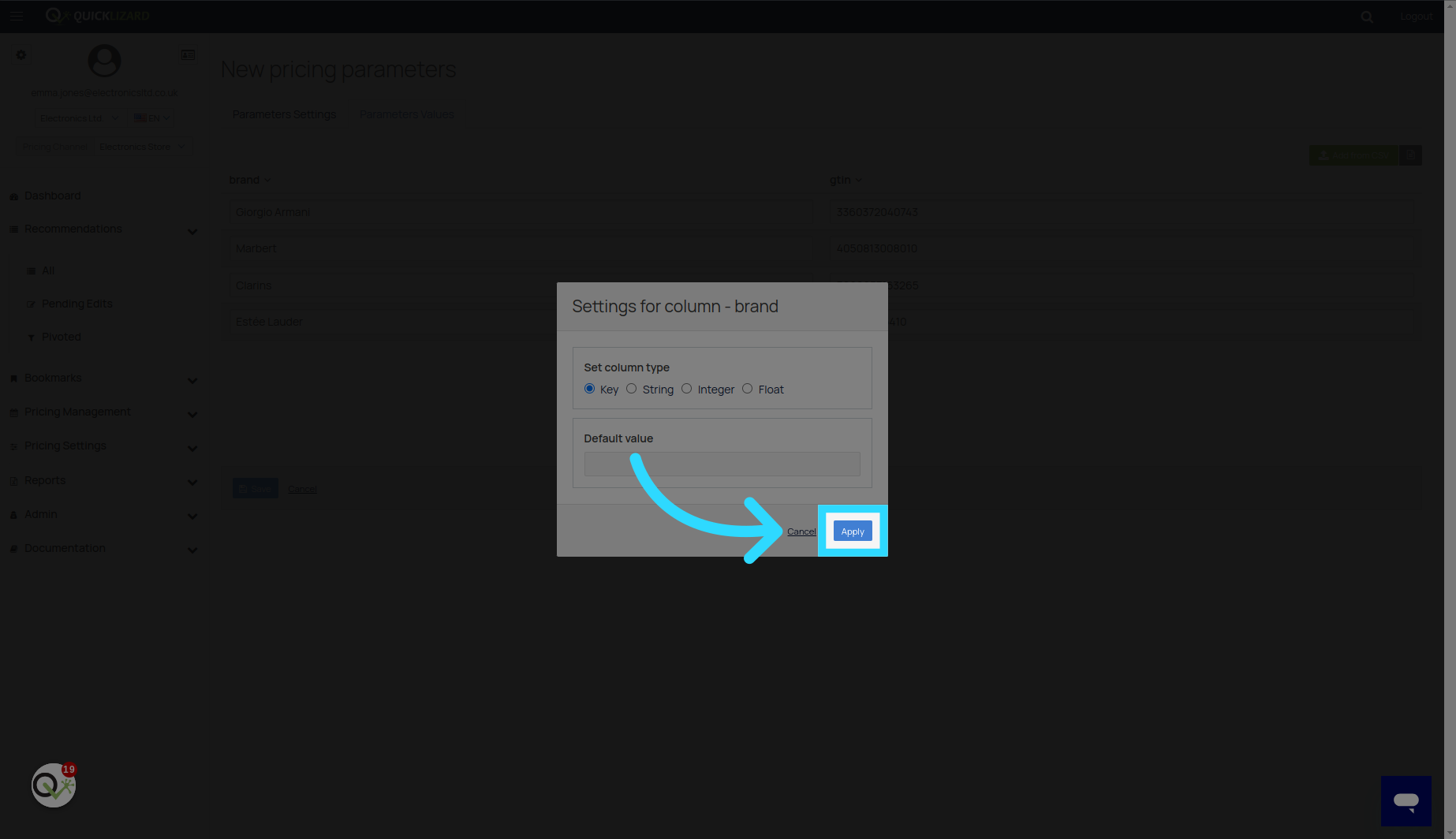
Apply the changes by clicking on the "Apply" button.
17. Fill "key"
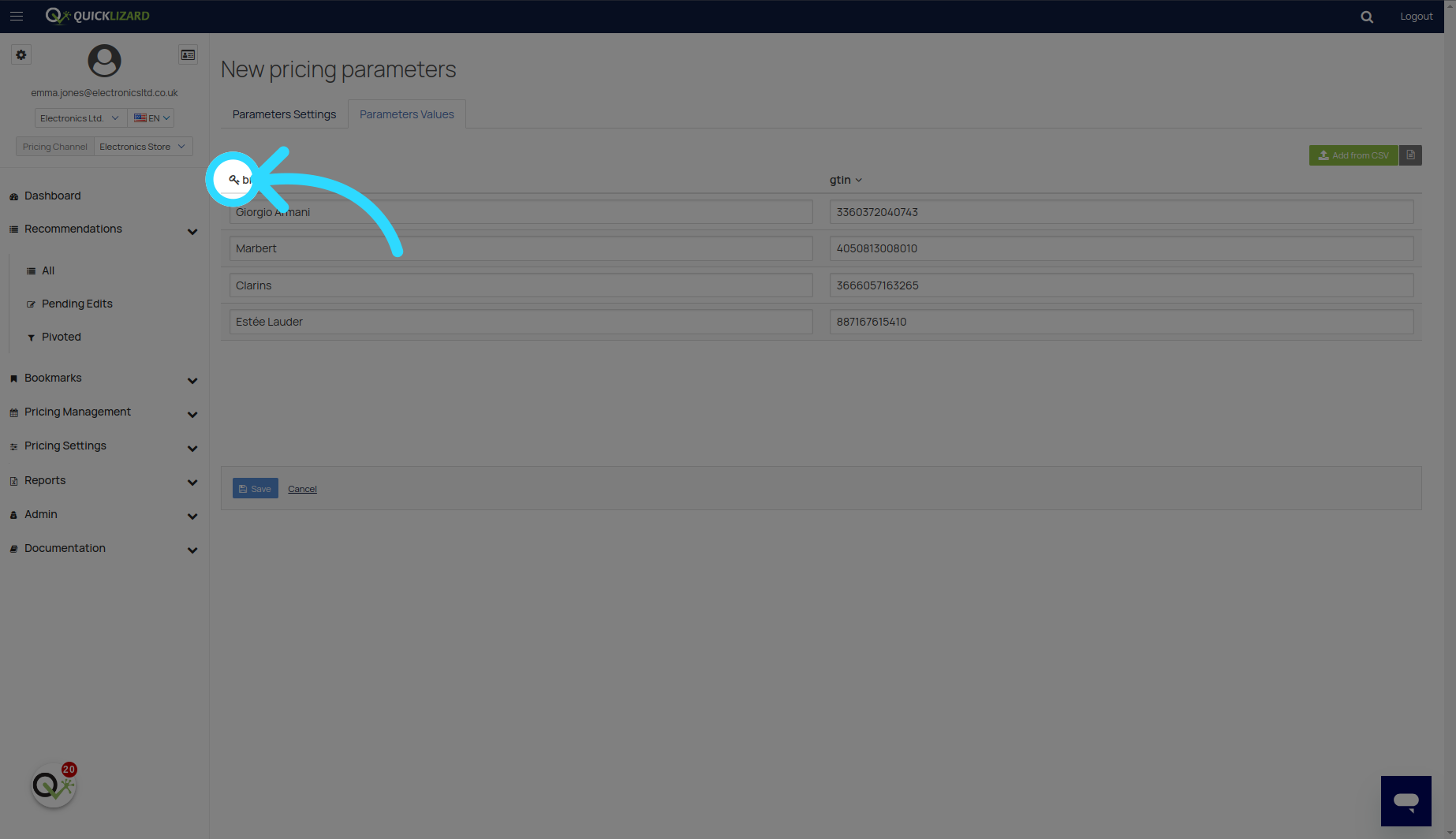
A little key will show next to the column you set as key.
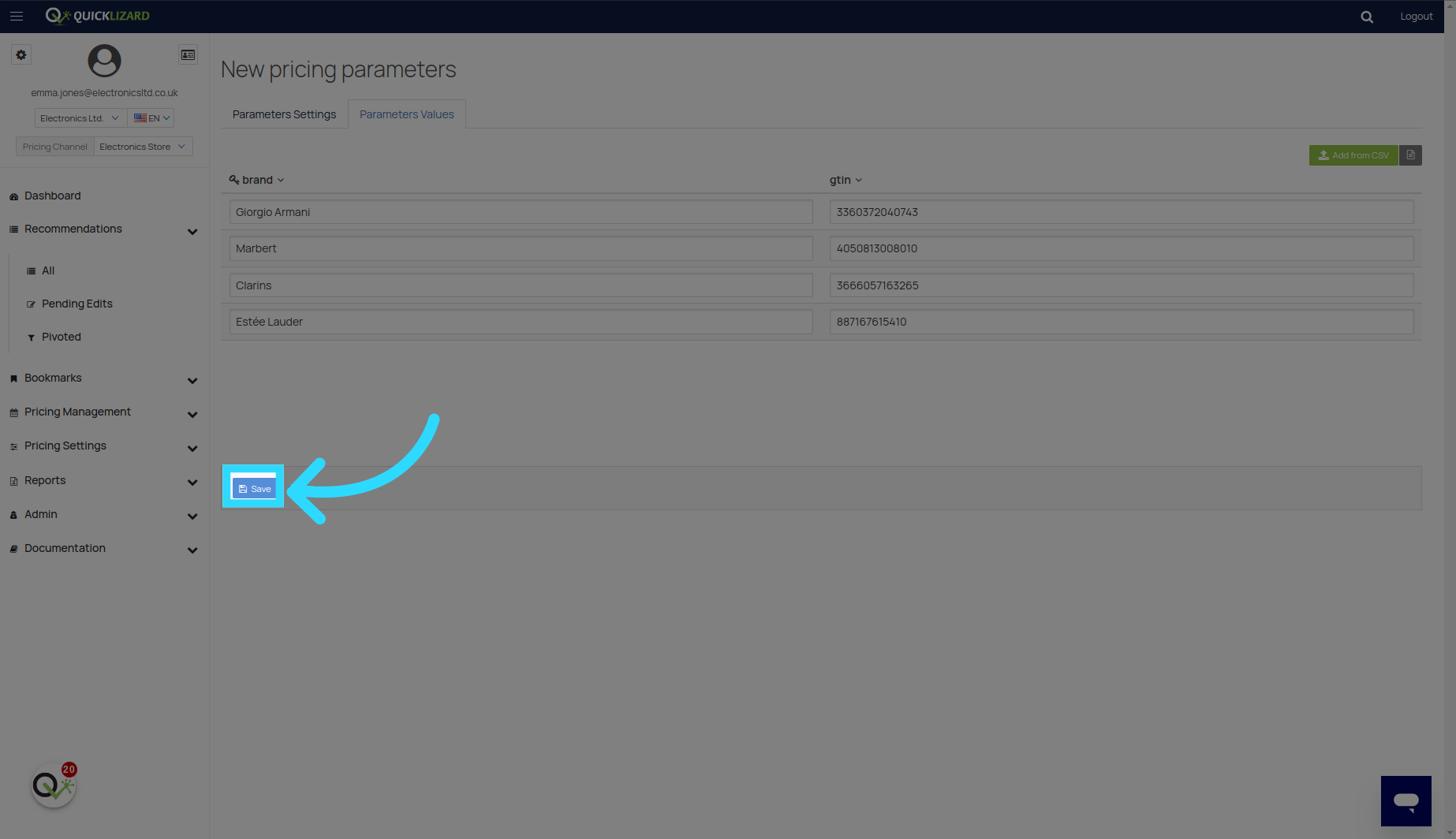
18. Click here
To save your changes click the save button.
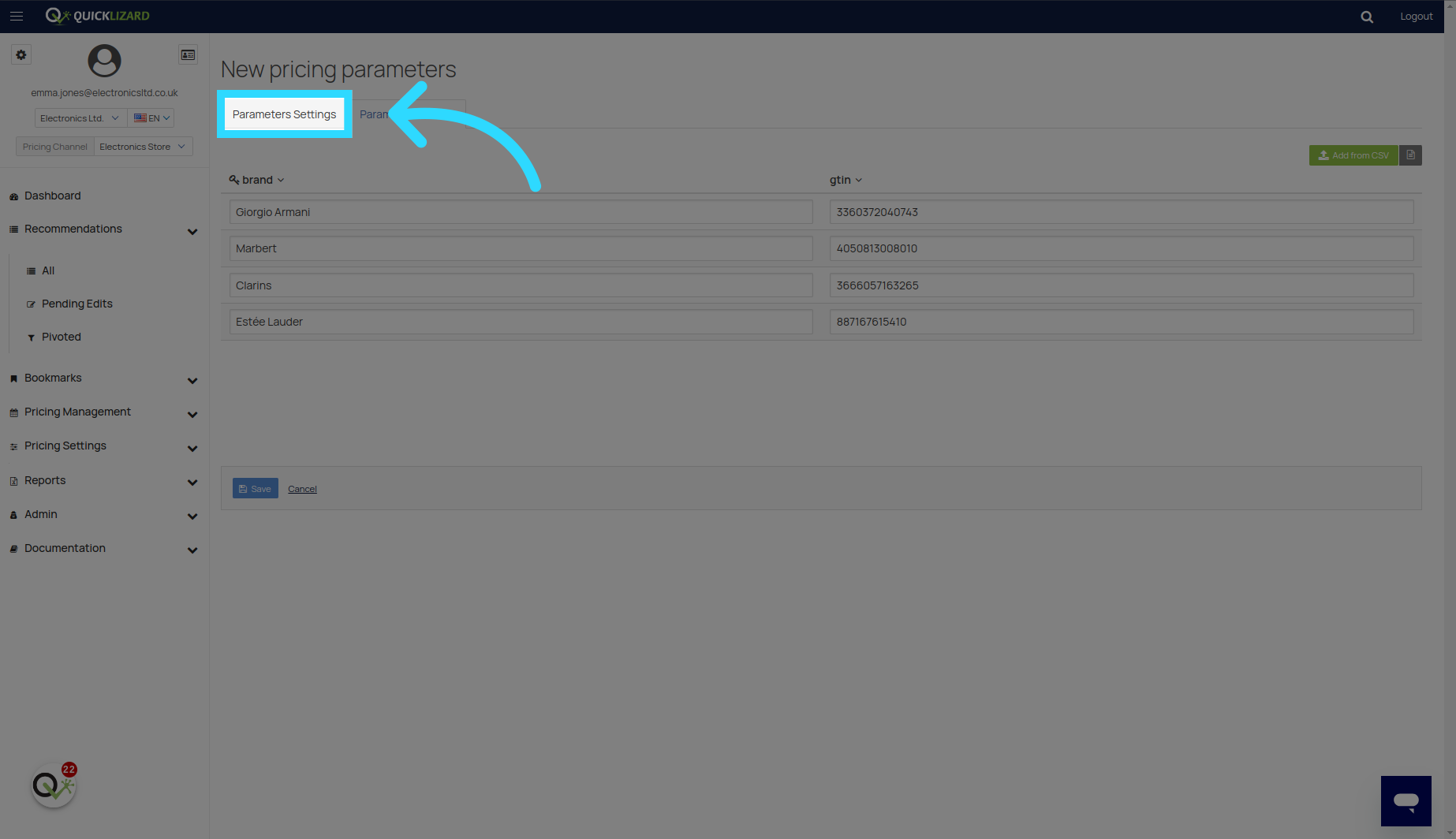
19. Click "Parameters Settings"
After finishing setting up the information, go back to the Parameters Settings tab.
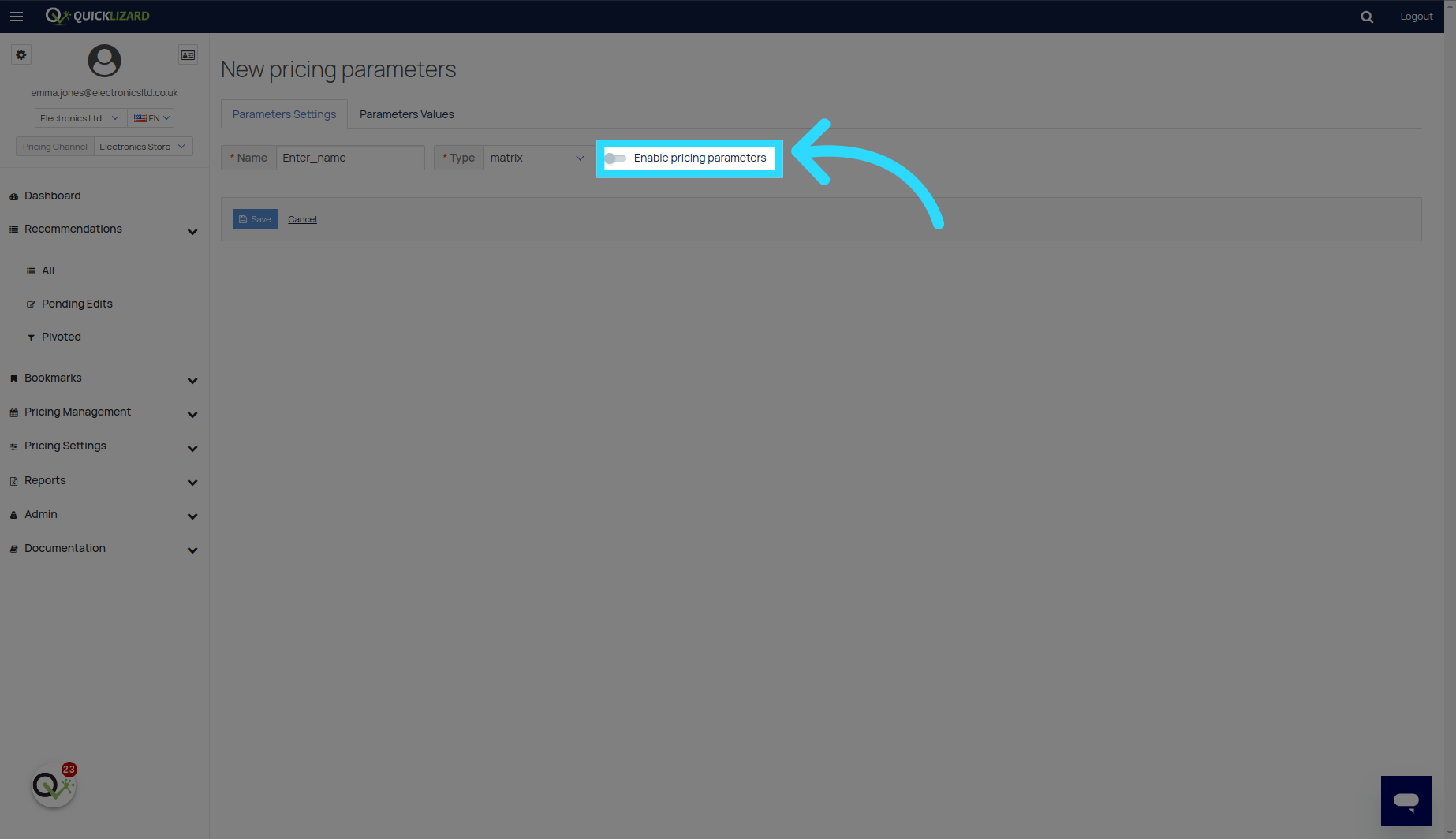
20. Click here
If you wish to enable the pricing parameters, turn the toggle on
21. Click "Save"
Save the changes by clicking on the "Save" button.
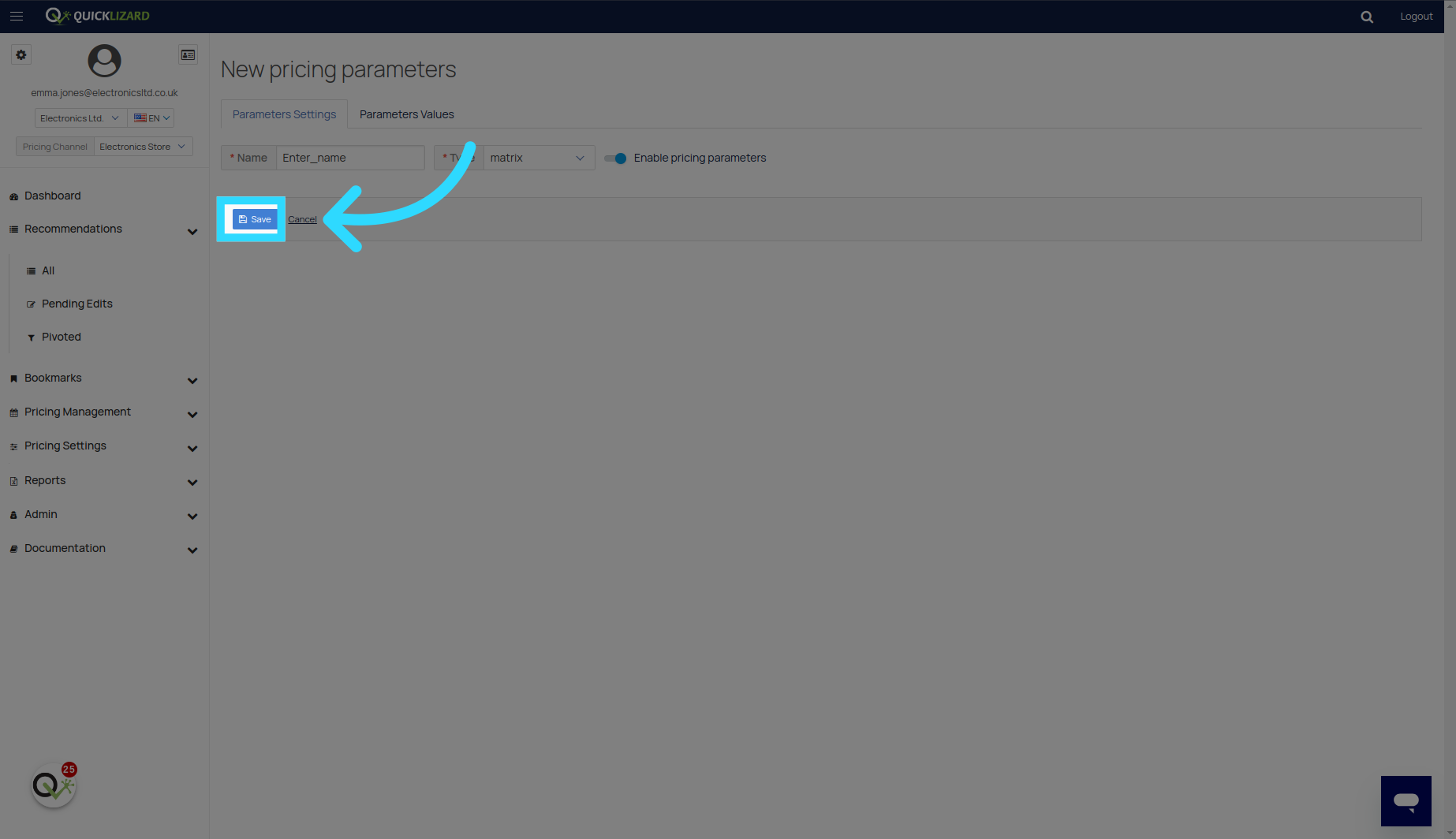
And that's it your parameter sheet is now saved and ready to use. To use it please check out our technical guide on how to use the parameter sheet in custom functions. Thank you for watching
Comments
0 comments
Please sign in to leave a comment.