Creating pricing groups is one of the most important capabilities in Quicklizard as they help you facilitate the alignment of pricing strategies.
To create a pricing group access the 'Pricing Groups' screen under 'Price management' and click the 'Add Pricing Group' button.
The pricing group creation/editing screen looks like this:

You can insert here the name of the group, its priority, the channels from which products are going to be added to this group, the included products, the strategy, and any advanced settings.
Priority
If a product meets the condition of more than one group, it will be assigned to the one with the lowest number.
You can use negative numbers.
Included products
All groups must have at least one active product segmentation filter.
The filters can be based on the different product attributes in the system (e.g brand, category).
If you combine a few filters, they will have a logical AND behavior, meaning only if a product matches all filters will it appear in the group.
Note, that you must find an existing value to filter by it. If no such value exists, the filter will not be added.
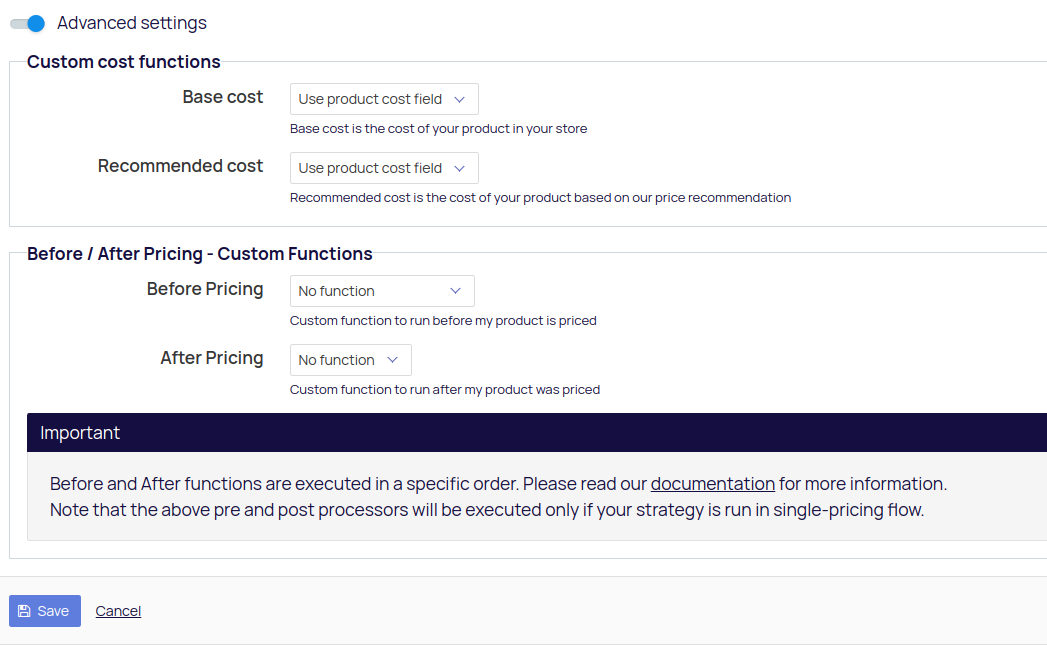
Advanced settings
Activating the advanced settings toggle will open the option of adding some custom code functions.
The execution order:
It is also possible to schedule a strategy by date in the Schedule Strategy tab.
to read more about it check our guide here
All changes will be lost unless you click on 'Save'.
The process is identical for Bulk pricing groups.
Comments
0 comments
Please sign in to leave a comment.