Within the Quicklizard application it is possible for users, with the correct permissions, to change the price recommendation that was generated by the QL pricing engine. This is called a manual override. When the user performs this manual override there are some default settings that are applied.
Main benefit: The user can perform the manual override quicker, when the default settings for the manual override are set correctly.
The below article explains how a user (with a Role that includes the Advanced Permissions - Settings) can change the default setting for the Manual Override.
Key Notes
- The Manual Override default settings are saved per channel. If your account uses multiple channels you have to set the default settings for each channel.
- There is no auto-save on the settings page, and you must click the Save button at the bottom of the Settings page to commit any changes that you have made.
1. Access the Manual Override default settings
Steps:
Click the gear icon in the top right corner, and select Account Settings.
The setting will open on the Channel Settings tab.
Scroll down to the bottom of the page and open the Manual Override settings.
Make any updates and click the Save button when done.
2. Set Allow Future toggle
When the Allow Future toggle is enabled, users will see an optional field Start Date in the Edit Recommendation popup window.
- In this field the user can select the date and time when the manual override should be scheduled to begin.
- Since the Start Date field is optional, the user can choose not to set a date and have the manual override become effective immediately.
When the Allow Future toggle is not enabled, the user will not see the Start Date field in the Edit Recommenation popup window, and any manual override will become effective immediately.
3. Select default Expiration Method
The Expiration Method defines the validity period of the manual override.
- During each pricing cycle the system will evaluate if the manual override is still valid.
- If the manual override is valid, no new price recommendation will be generated and the manual override price will be shown as the recommended price in the QL application.
- If the manual override has expired a new price recommendation will be generated by the system.
- In case the manual override expires in the period between two pricing cycles, the manual override price will remain active until the next pricing cycle.
QL offers the following Expiration Method options:
- Until the next pricing cycle - The next time the product is sent to pricing, the manual override will be removed.
- Duration - The manual override remains valid for X number of days.
- Duration in Days field is used to set the X days.
- Duration or competitor price change - The manual override remains valid until either the Duration or Competitor price condition is met.
- Duration condition is set using a separate Duration in Days field, where the user can set the X number of days that the manual override should maximum stay valid.
- Competitor price condition is set using a separate Competitor Price Is field. Here the user can choose from 'Higher or Lower', 'Higher' or 'Lower' to indicate which change in competitor price will cause the manual override to become invalid.
- Attribute value - The manual override remains valid until a specified (text) attribute is changed to a specific value. For example, if a 'promotion flag' attribute is set to 'Yes' the manual override should expire.
- Attribute field is used to select the custom text attribute.
- Value field is used to set the value of the custom text attribute.
- Numeric attribute change - The manual override remains valid until a specified numeric attribute is changed to a value within a specified numeric range. For example, if the 'inventory' reaches a certain level, the manual override should expire.
- Attribute field is used to select the custom numeric attribute.
- From and To fields are used to specify the numeric range of the custom numeric attribute.
- Forever - The overrides does not expire and can only be removed manually.
Customizing visible Expiration Methods
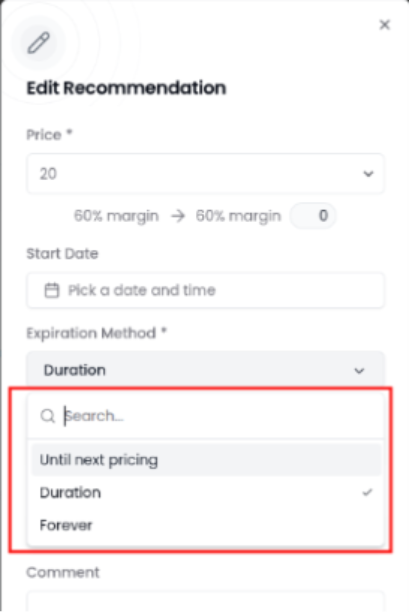
Since not all clients want to allow their users to use all Expiration Methods, it is possible to hide specific Expiration Methods from the QL application. This means that both in the default settings and in the Edit Recommendation popup window fewer Expiration Methods are available for the user to choose from.
Please contact your Customer Success Manager to modify which Expiration Methods are visible.
Default Edit Recommendation window || Example of modified list of Expiration Methods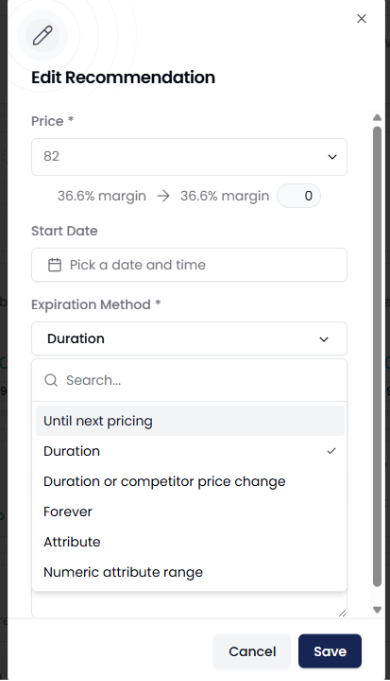
4. Select default Override Reason
The Override Reason can be used by the user to provide more details about the override in the audit log.
QL offers the following Override Reason options:
- Other
- If this value is chosen the user will see an optional free text Comment field in the Edit Recommendation popup window.
- Custom Action
- Too many price changes
- Recommended price is too high
- Recommended price is too low
- Data is missing in your recommendation
Comments
0 comments
Please sign in to leave a comment.