In This Guide
What are the mapping filters?
This feature provides you with the ability to define the competitors that should influence your pricing decisions for different product groups. For instance, if you operate in the electronics industry, there may be specific competitors who are only relevant when it comes to kitchen appliances or smartphones.
Considerations
1. If you don’t define a mapping filter, the competitor will be mapped for all of your product assortment.
2. If you apply multiple conditions to one competitor, all of them must apply for a product to be mapped.
How to use the mapping filters feature?
In this tutorial, we'll demonstrate how to define which competitors in the system will be linked with each range of products, enabling you to optimize your mapping strategy.
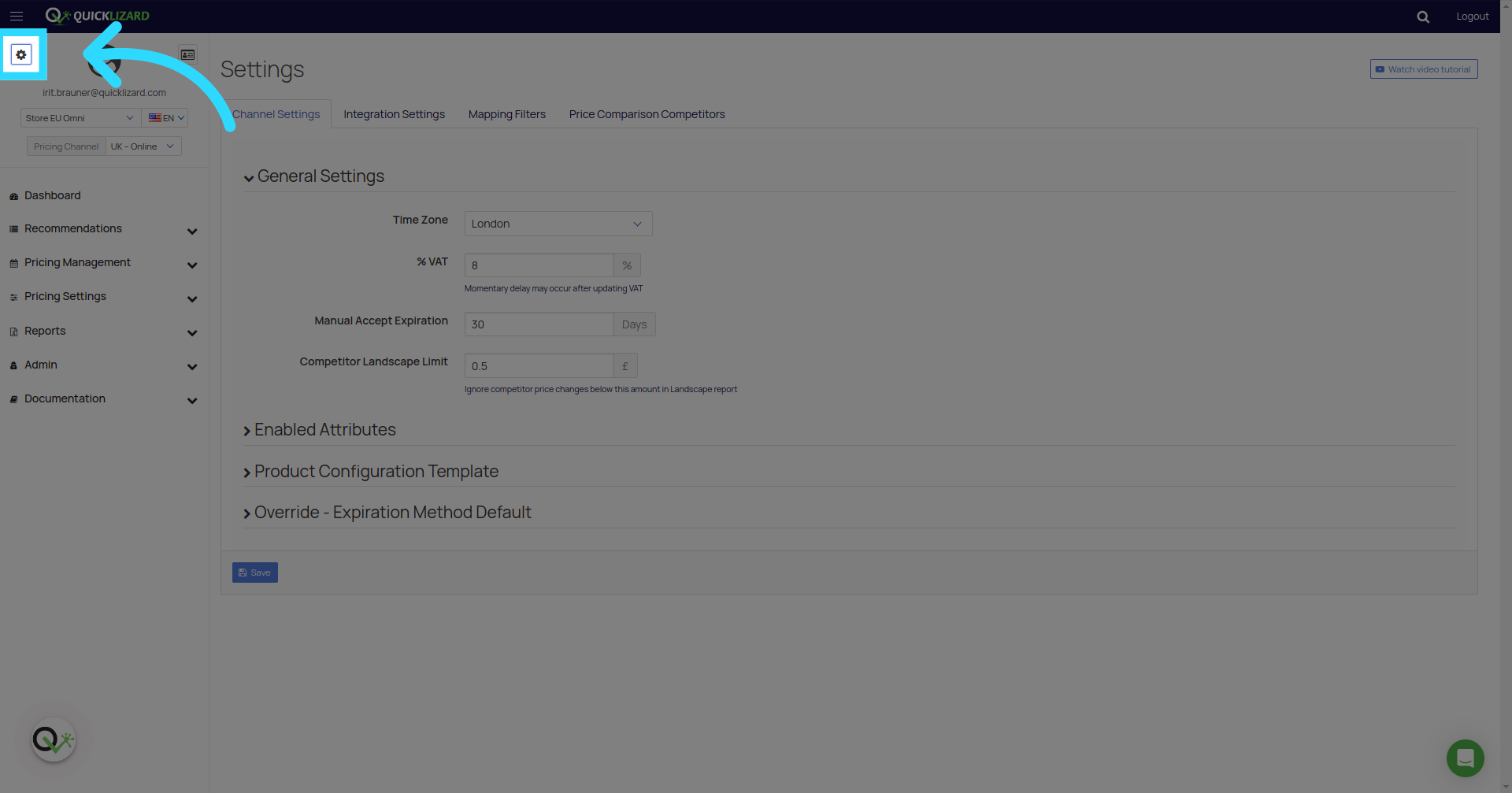
1. Click here
Click on the settings button
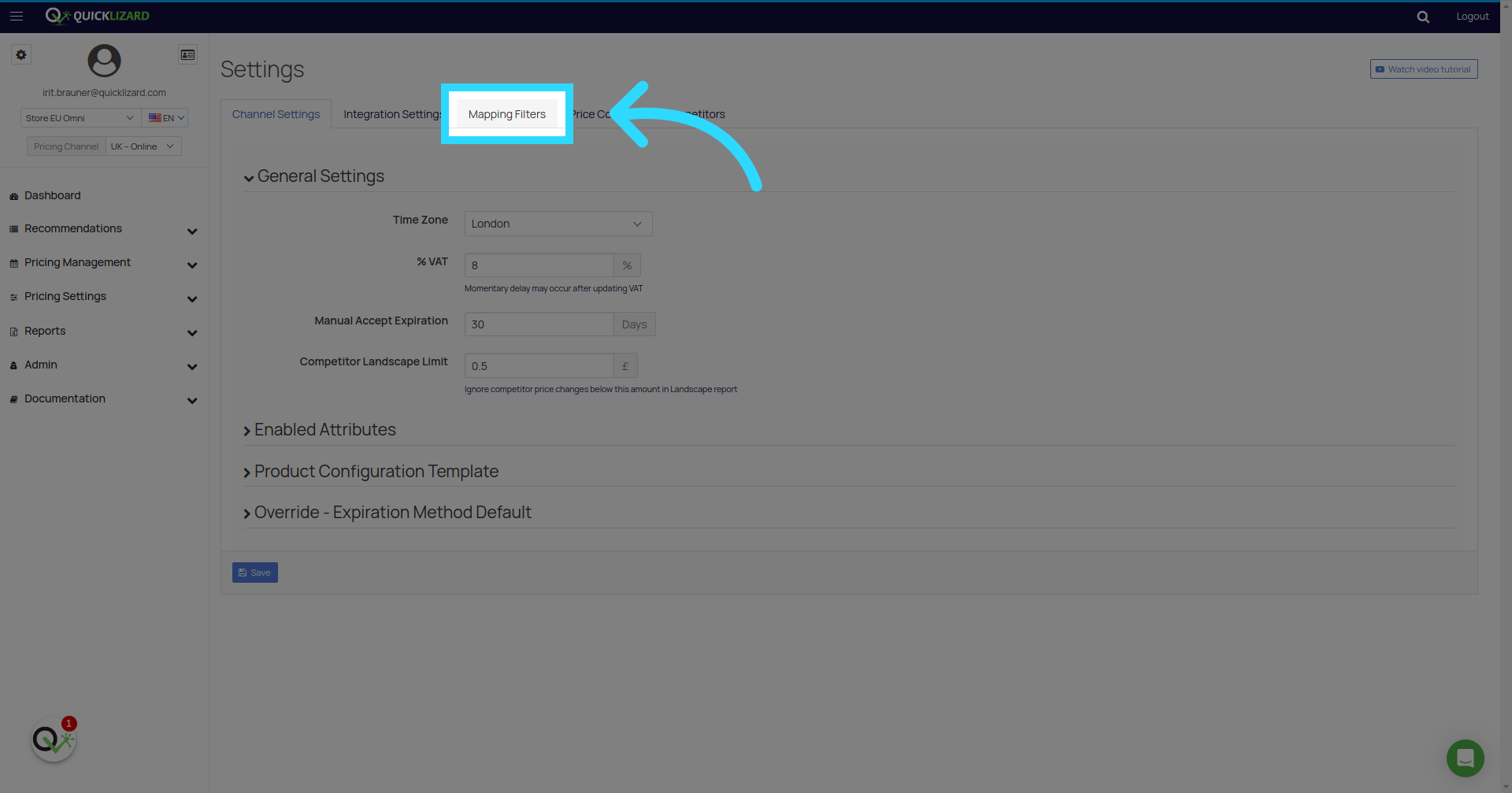
2. Click "Mapping Filters"
Click "Mapping Filters"
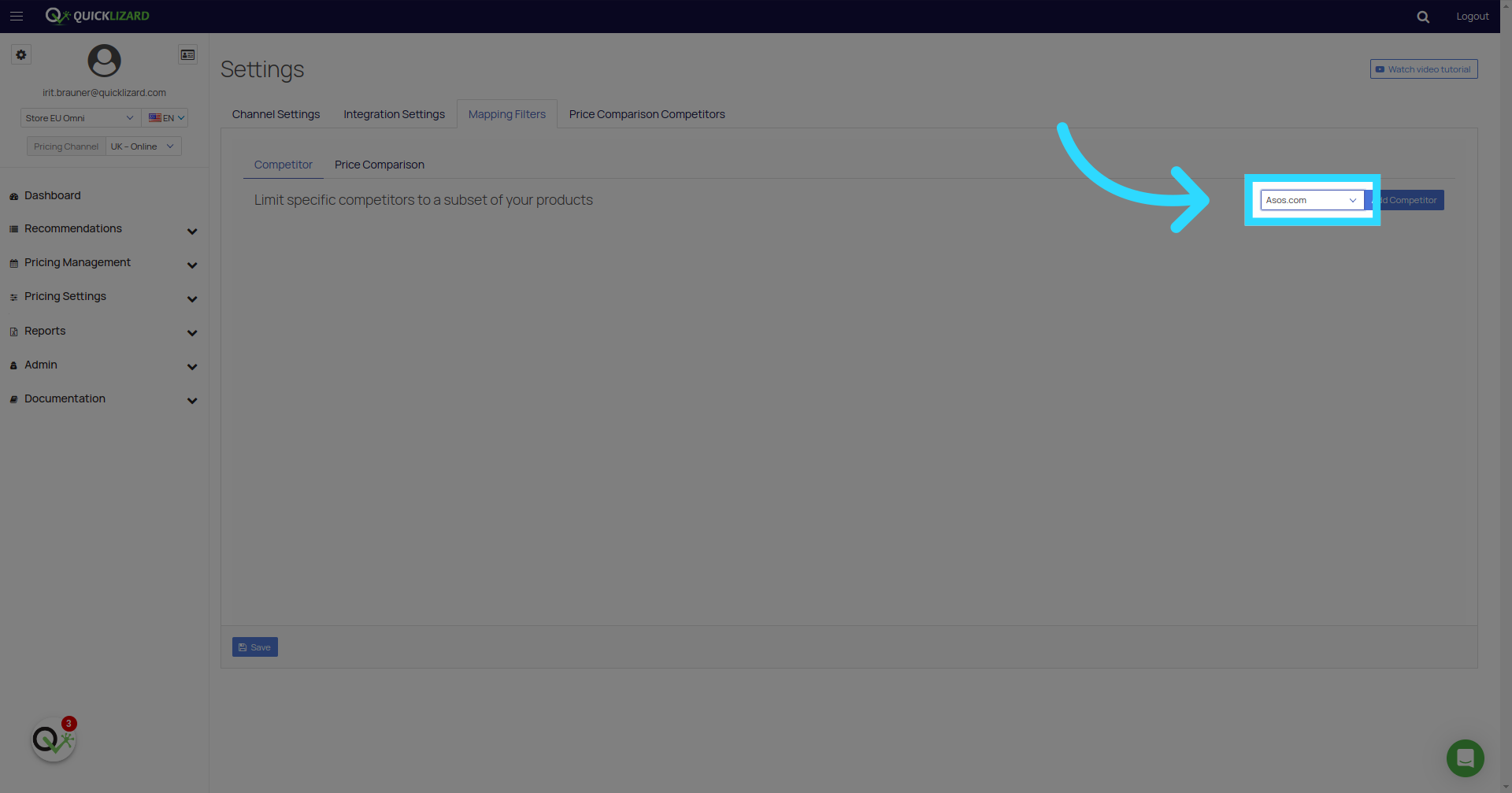
3. Fill "Please select......"
Select the competitor to designate the range for.
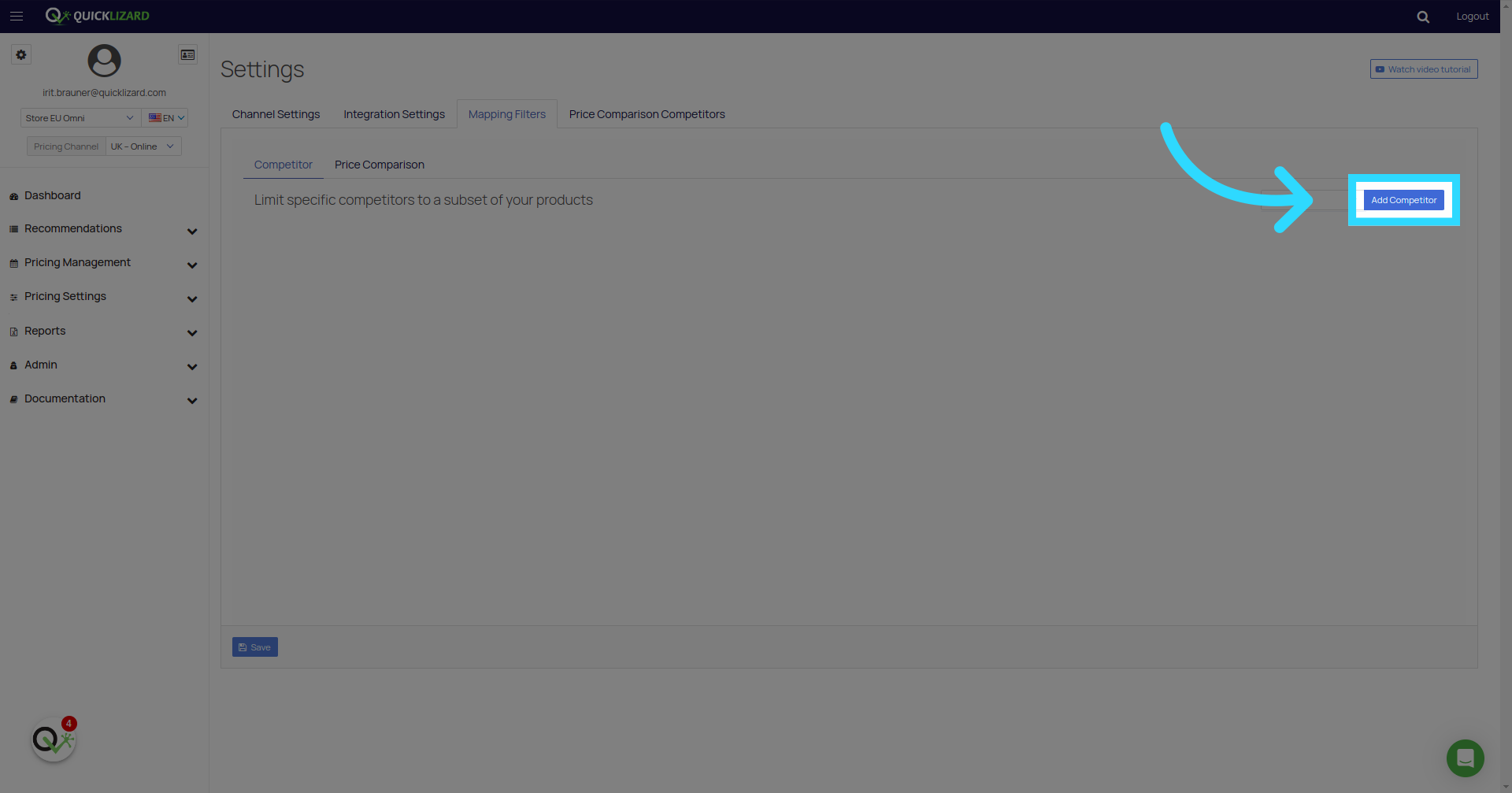
4. Click "Add Competitor"
5. Fill "Please select......"
Now, opt for the filter to apply.
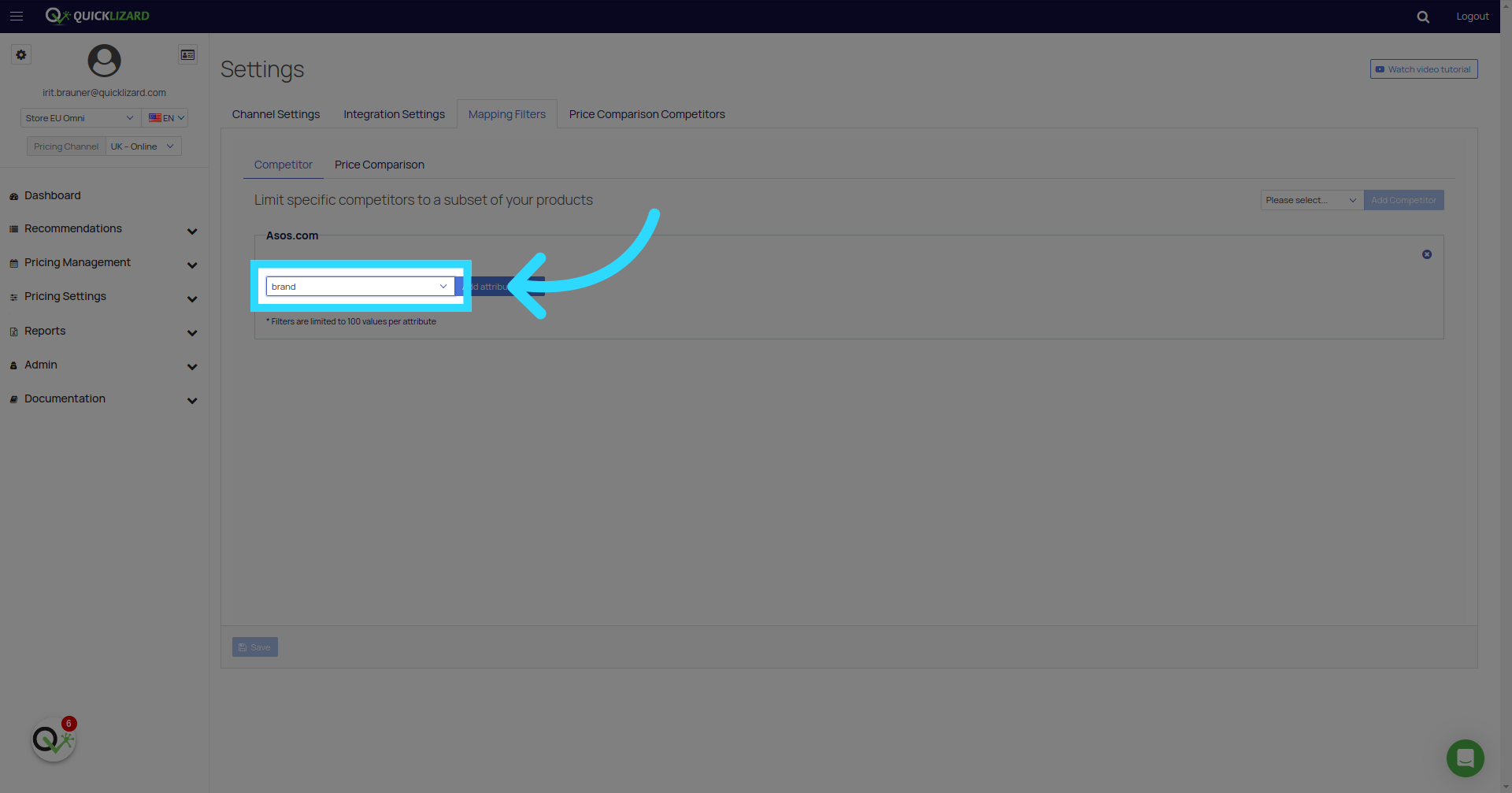
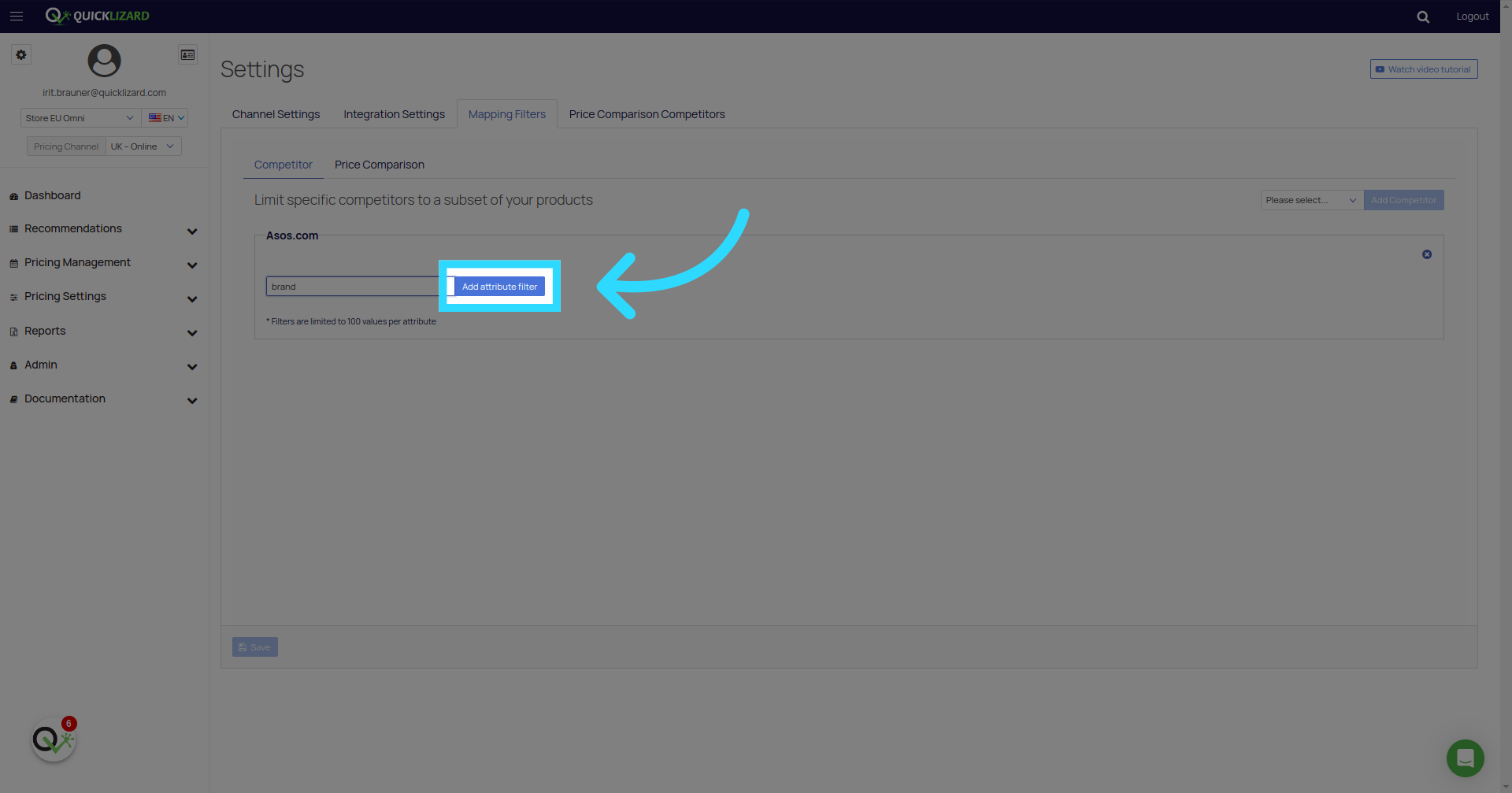
6. Click "Add attribute filter"
Click "Add attribute filter"
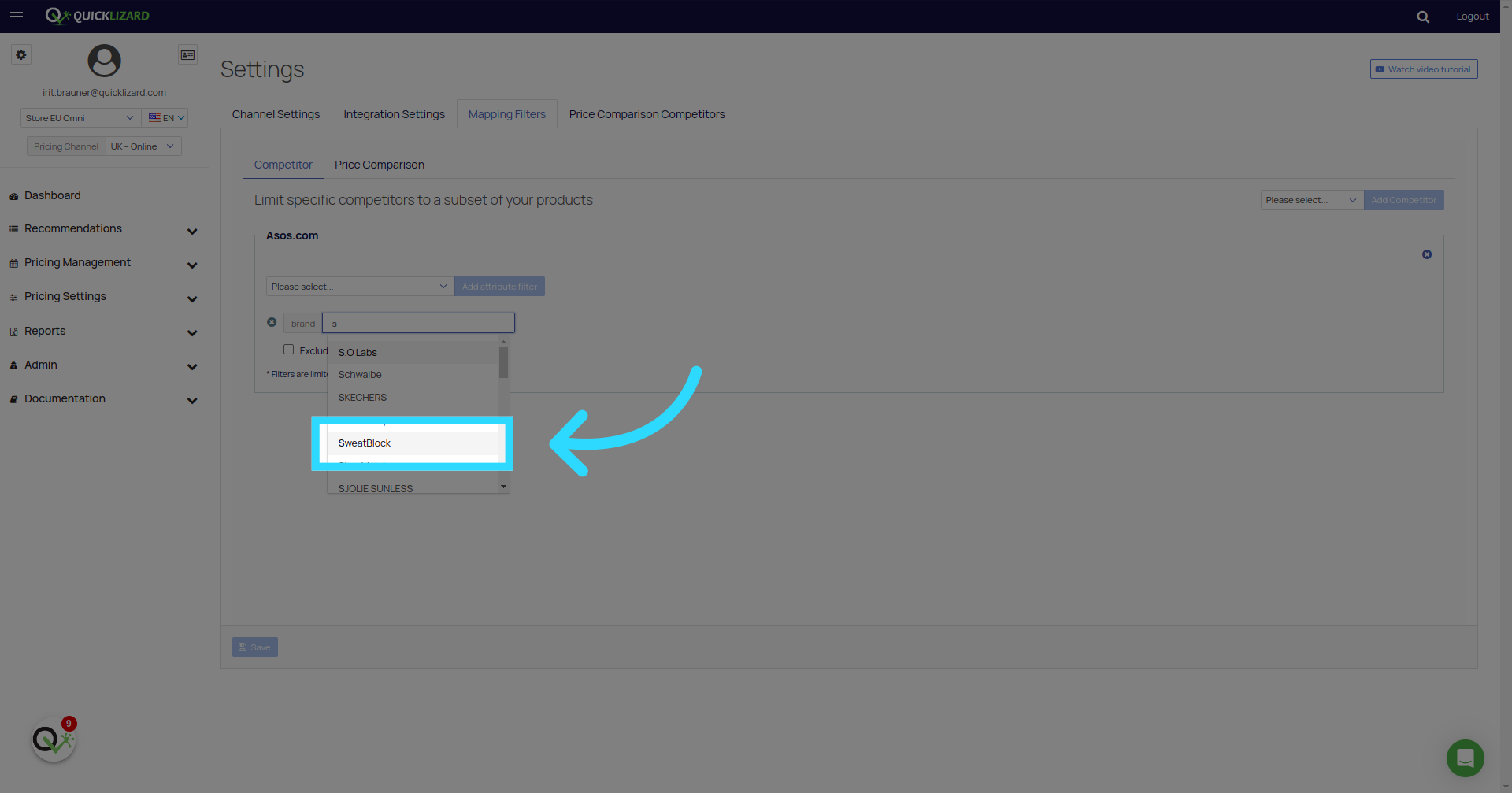
7. Click "SweatBlock"
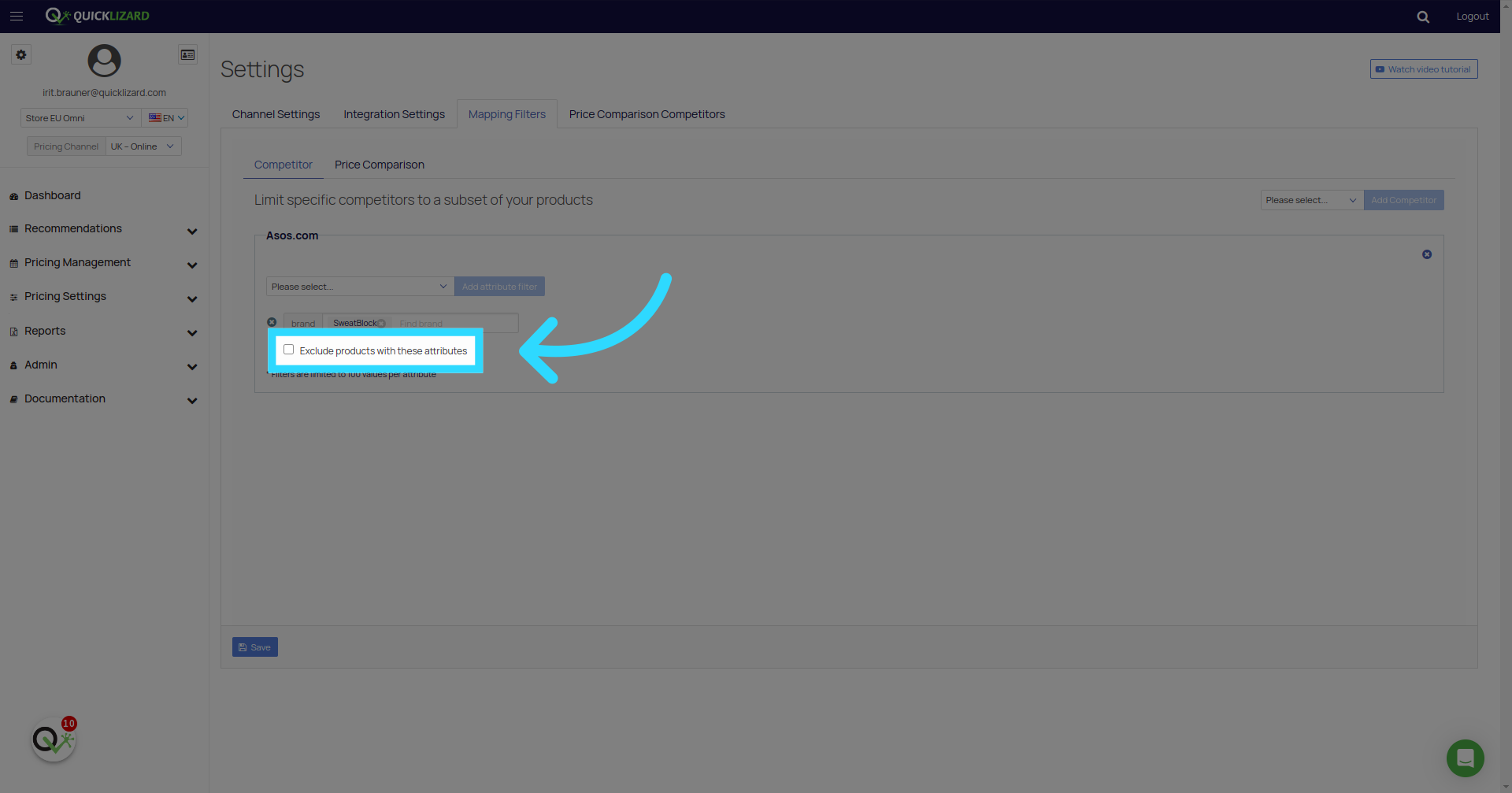
8. Click "Exclude products with these attributes"
You have the option to utilize the filter to either exclude or include products.
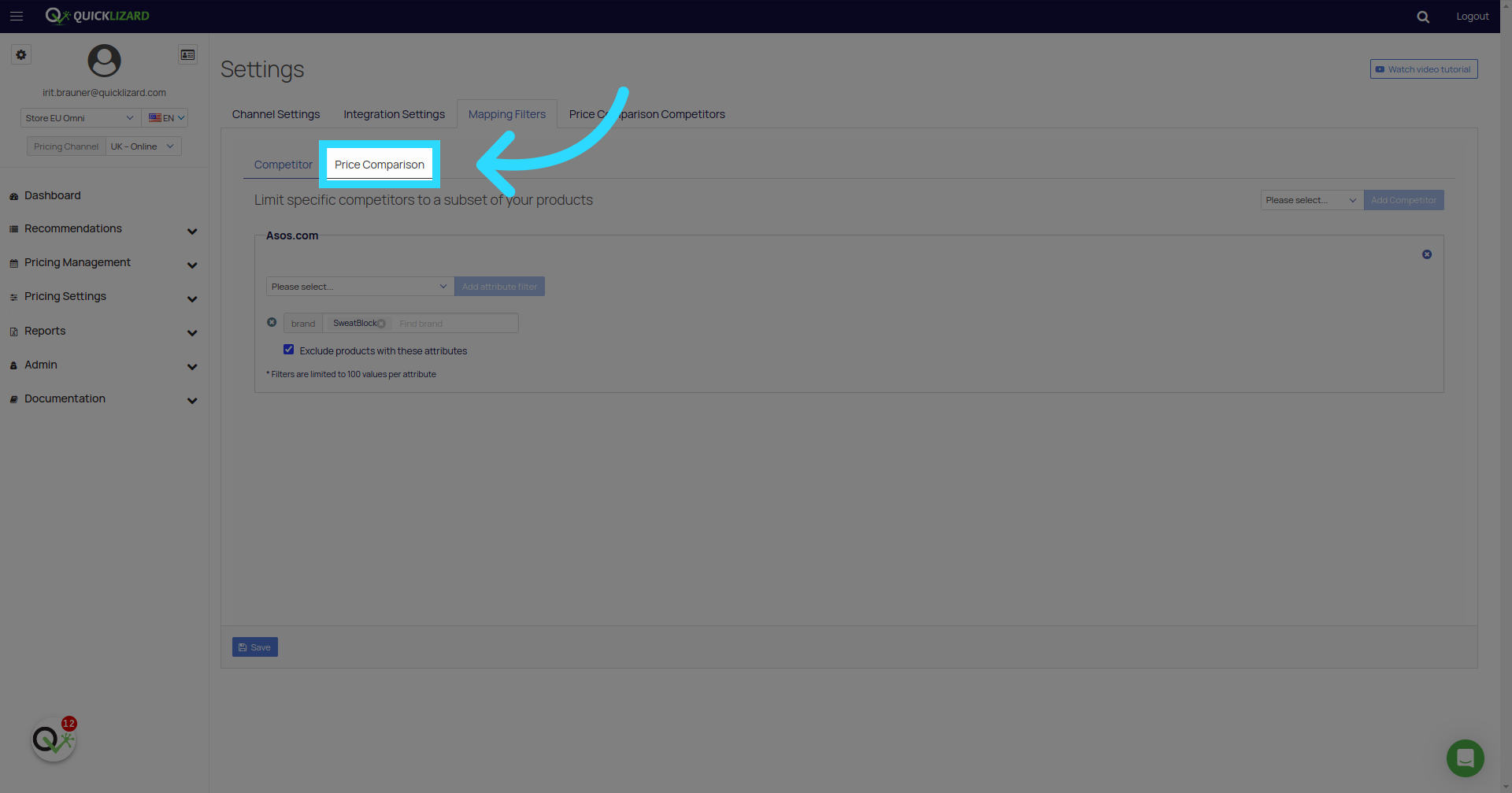
9. Click "Price Comparison"
To map a price comparison competitor, navigate to the "price comparison" section.
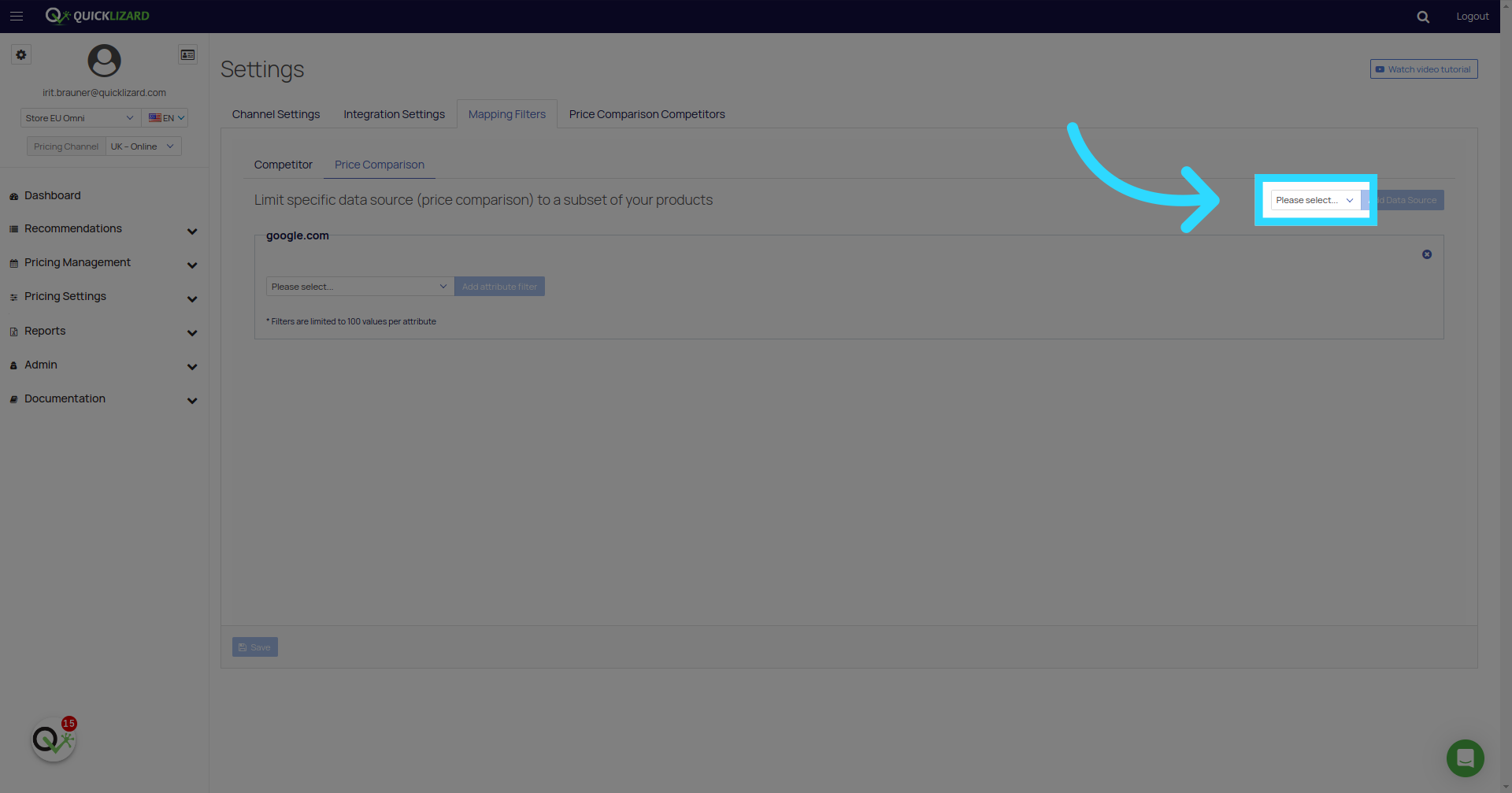
10. Fill "Please select..."
Follow the same rationale.
Comments
0 comments
Please sign in to leave a comment.