Creating pricing strategies is one of the most important capabilities in Quicklizard as they help you define the rules set to create new recommendations for products.
First, access the 'Pricing Strategies' section under the 'Pricing Settings' dropdown menu click the 'Add Pricing Strategy' button, and choose single or bulk.
The new pricing strategy will look like this
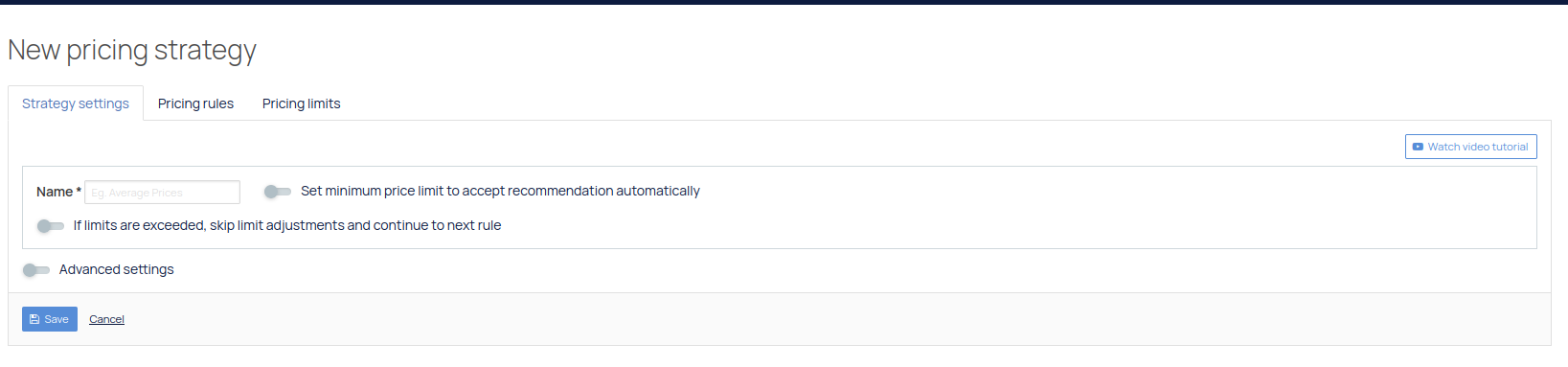
Configuration
If you wish the strategy to accept pricing recommendations automatically, you must first apply pricing limits.
You can enable or disable skipping to the next rule if limits are exceeded.
If you're creating a single strategy (not bulk), you can toggle Advanced settings, where you can add pre-processing and post-processing custom functions.
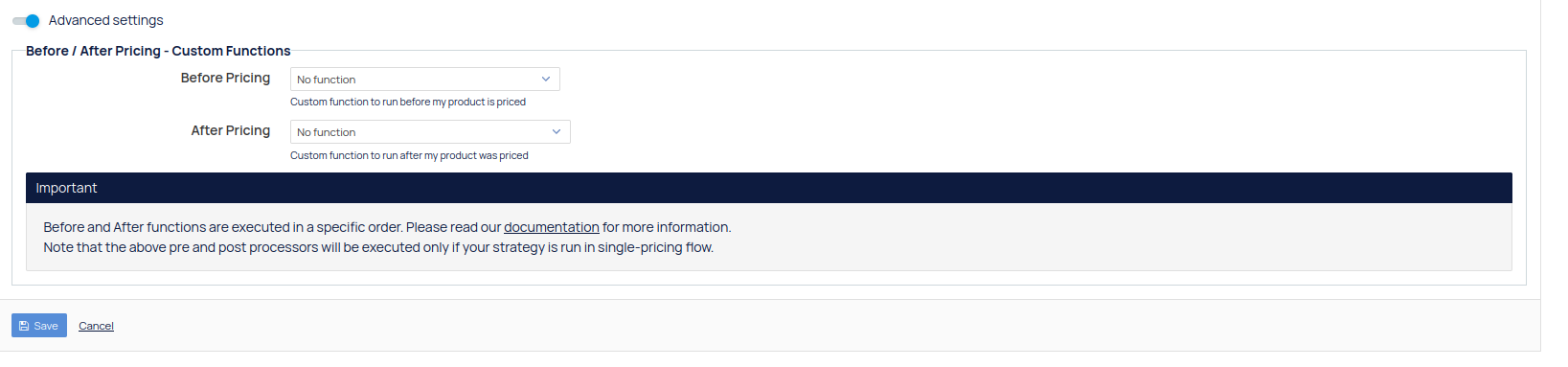
Pricing rules
Under Pricing rules, you will define the pricing rules set for the strategy to follow, to read more about the different rules and how to use them, check out our guide here.
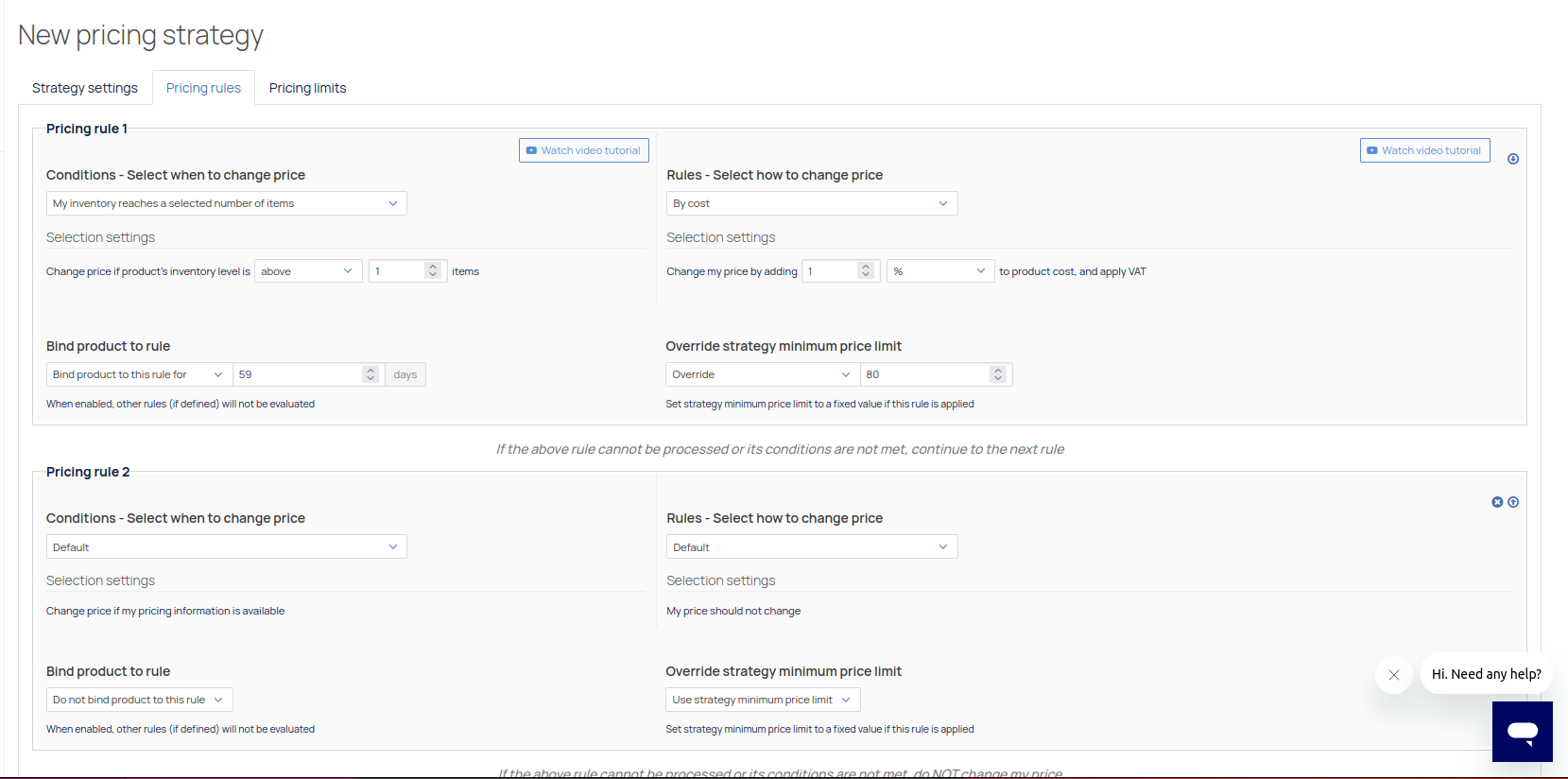
The rules are arranged in chronological order.
A product group linked to this strategy will cycle through the rules until a rule matches the product's attributes. And send it to the pricing engine based on the strategy.
There is always a default pricing strategy set up in case none of the other rules don't apply to a product, and if even the default doesn't apply, no changes will be made to the pricing.
It is possible to choose from a list of pre-built conditions and rules or to create custom functions and define them as "Custom Rule Condition" or "Custom Pricing Rule" so that they will become available on the lists.
Bind product to rule lets you determine a time limit in days. During this time, this strategy will take precedence over all other rules - other rules will not be evaluated.
See a more detailed explanation here
Pricing limits
You can set pricing limits in the following screen:
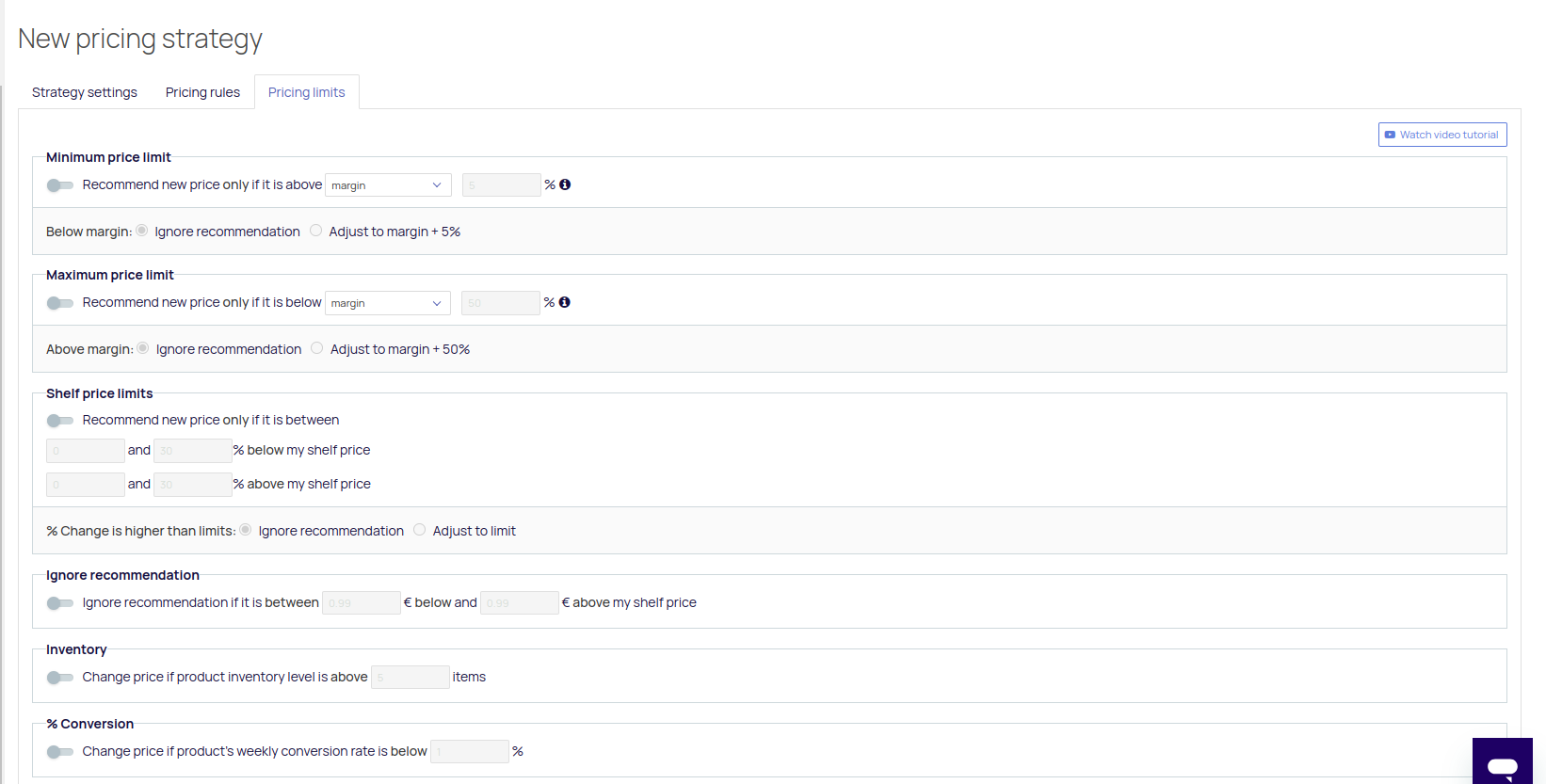
To understand better how the limits & rounding are working, check out our 'Rounding & Limits' guide.
Comments
0 comments
Please sign in to leave a comment.